There’s a tool in Search Console that removes a URL from Google in about an hour. It’s the first thing every guide points you at, and it’s usually the wrong place to start.
The reason is in Google’s own documentation, stated plainly: the Removals tool hides a URL for roughly six months. After that it comes back, unless you did something else in the meantime. People use it, watch the page vanish, feel relieved, and then get a very unpleasant surprise half a year later.
So this guide covers both parts. The fast hide, which takes minutes and buys you time. And the permanent fix, which is what actually solves the problem. It also covers a page most guides skip entirely: what to do when the content is on a site you don’t own.
Checking It’s Actually Indexed
Before you remove anything, confirm Google has it. People regularly panic about a page that was never in the index to begin with.
The quick check is to search site:yourdomain.com/the-page in Google. It’s fast and it’s approximate. Results from a site: search aren’t a reliable picture of what’s actually indexed, so treat it as a first glance rather than an answer.
The real check is URL Inspection in Search Console. Paste the full URL and it tells you whether the page is on Google, when it was last crawled, and whether anything is blocking it.
Note the exact URL it reports. Google treats http and https, www and non-www, and versions with trailing parameters as different addresses, and the one you remember typing isn’t always the one that got indexed.
Picking the Right Method
There are five ways to get a URL out of Google, and choosing wrong is why people end up doing this twice. Here’s the whole decision in one place.
| Situation | Method | Roughly how long |
|---|---|---|
| Urgent. Leaked data, wrong page published | Removals tool, then a permanent fix | Hours |
| Page should be gone for good | Delete it, return 404 or 410 | Days to weeks |
| Page must stay live but stay out of search | noindex meta tag | Days to weeks |
| Only certain people should see it | Password or login | Days to weeks |
| Duplicate of a page you want to keep | Canonical tag or 301 redirect | Weeks |
That last row deserves a caveat. Canonical tags and redirects aren’t removal, they’re consolidation. A canonical is a hint, and Google can ignore it if the two pages aren’t similar enough. If the page genuinely must not appear, don’t rely on it.
Notice what isn’t on that list: robots.txt. More on that shortly, because it’s where most of the damage happens.
Using the Removals Tool
In Search Console, go to Indexing » Removals » New Request.
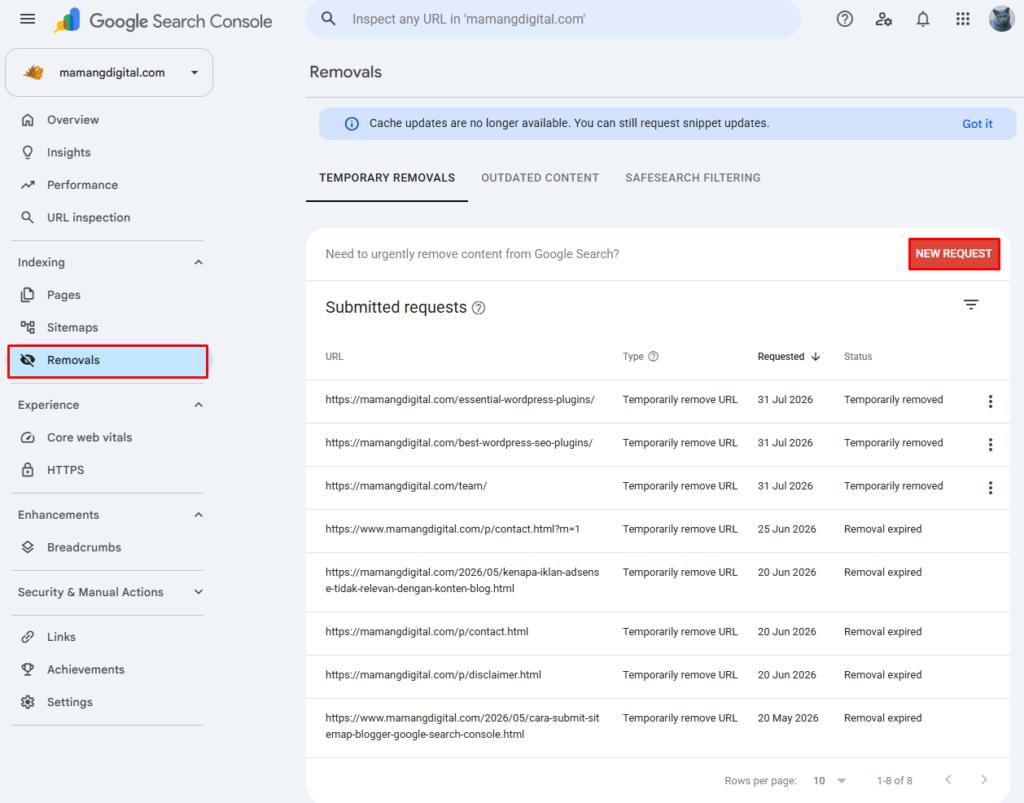
You’ll get two tabs. Temporarily remove URL hides the page from search results for about six months. Clear cached URL does something narrower, covered in the next section.
Paste the URL and choose between two options.
Remove this URL only is what you want almost every time. One useful detail: it automatically covers the www, non-www, http and https variants of that address, so you don’t need four separate requests.
Remove all URLs with this prefix is the one to be careful with. It removes every URL starting with what you typed. Useful for clearing out an entire directory. Also the fastest way anyone has ever removed their whole site from Google by accident, because the prefix https://yourdomain.com/ matches every page you have. Read what you pasted before submitting.
Requests are usually processed within a few hours. You can watch the status in the Removals report: Processing, Temporarily removed, Request denied, or Expired.
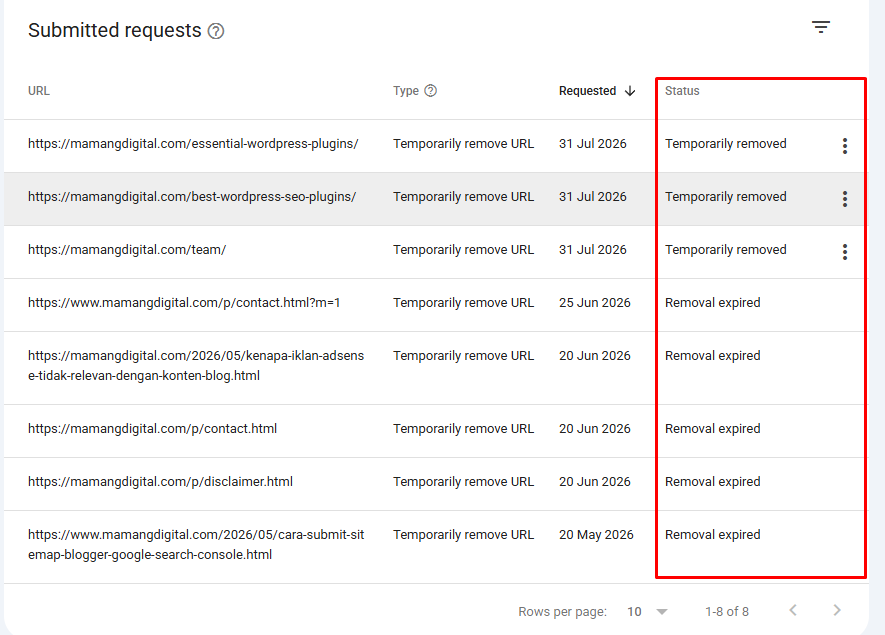
Two limits worth knowing. The tool only works on properties you’ve verified in Search Console, so it’s no help for someone else’s site. And it only affects Google. Bing, DuckDuckGo and everyone else carry on as normal.
What “Clear Cached URL” Actually Does Now
Almost every guide to this topic describes the second option as clearing Google’s cached copy of your page, so that nobody can pull up the old version.
That description is out of date. Google retired cached links in February 2024. The Cached button vanished from search results, and the cache: operator was switched off. There is no cached copy for the public to open any more.
What the option still does is clear the description snippet shown under your title in search results, until Google recrawls the page and writes a new one. That’s genuinely useful in one specific case: you’ve already edited the page to remove something sensitive, the page itself is now clean, but the old text is still sitting in the snippet on the results page.
If the page is being deleted entirely, skip this option. Use the temporary removal instead, which covers the snippet anyway.
Making It Permanent
Six months sounds like a long time. It isn’t, and the expiry arrives without a warning email.
Google lists exactly three permanent options.
Delete the page and return 404 or 410. The strongest signal. 404 means not found, 410 means gone and not coming back. Google honours both, and 410 tends to be acted on slightly faster because it removes the ambiguity. If your CMS returns 404 by default, that’s fine. Don’t chase the difference unless you’re removing hundreds of URLs.
Watch out for one trap here: a page that displays a “not found” message to humans while quietly returning a 200 status code. Google calls these soft 404s and treats them as live pages. If you deleted the content by emptying the post rather than deleting the URL, this is probably what you’ve created.
Add a noindex tag. Right for pages that need to stay accessible to people but not appear in search. Thank-you pages, internal tools, staging areas. In WordPress, Yoast and Rank Math both expose this per-post without touching any code.
<meta name="robots" content="noindex">Put it behind a password. A login wall or HTTP authentication. Googlebot can’t get in, so nothing gets indexed. Best for member areas and development sites.
Non-HTML files that show up in search, PDFs especially, need to come off the server entirely. A noindex meta tag lives in HTML, and a PDF has no HTML to put it in.
The Mistake That Undoes Everything
Here’s the one that catches nearly everyone, and it’s worth understanding rather than memorising.
The instinct, once you’ve added noindex, is to also block the URL in robots.txt. Belt and braces. Two locks are better than one.
They cancel each other out. Crawling and indexing are separate steps. robots.txt controls crawling. The noindex tag lives inside the page, so Googlebot has to fetch the page to read it. Block the page in robots.txt and Googlebot never fetches it, never sees the noindex, and the URL can stay in the index indefinitely because links pointing at it still exist. Google’s own documentation says a noindex rule is only obeyed when the page is crawlable.
That’s where the “Indexed, though blocked by robots.txt” warning in Search Console comes from, and why the page sitting under it refuses to disappear.
There’s also a related dead end. Putting noindex: inside robots.txt used to work unofficially. Google stopped supporting it on 1 September 2019. Any guide still recommending it has not been checked in over six years. We went through the difference between blocking and deindexing in more detail in robots.txt explained.
The correct order, if you want both:
- Add noindex, or delete the page and return 410.
- Leave the URL crawlable and wait for Google to recrawl it. Confirm with URL Inspection.
- Only after it’s actually gone, block it in robots.txt if you still want to.
For most people step three is unnecessary. Once a page is out, it’s out.
Removing an Image
Images work differently, and this is the one situation where robots.txt is genuinely the right tool. Blocking an image file in robots.txt does keep it out of Google Images, because there’s no meta tag inside a JPEG for a noindex to live in.
User-agent: Googlebot-Image
Disallow: /wp-content/uploads/2026/03/photo.jpg
Before you do that, go and find every copy. The same image is often sitting at several URLs on your own site, because WordPress generates resized versions on upload. Right-click the image in search results, choose to search Google for it, and look at all sizes plus the pages that include matching images. Deleting one file and leaving four thumbnails achieves nothing.
The most reliable answer is still to delete the file from your server. Blocking an image you’ve left in place means it stays reachable to anyone with the direct link.
When It’s Not Your Site
Everything above needs a verified Search Console property. If the page belongs to someone else, none of it applies, and this is the situation people are usually in when they start searching for this topic.
You have two routes, and they solve different problems.
Ask the site owner first. Unglamorous, and by far the most effective. Nothing you can do to Google changes what’s published on their server. Even a successful search removal leaves the page live for anyone with the link.
Use the Refresh Outdated Content tool once the content is already gone or changed. This one is public and needs no verification. It tells Google to recheck a URL whose search listing no longer matches reality.
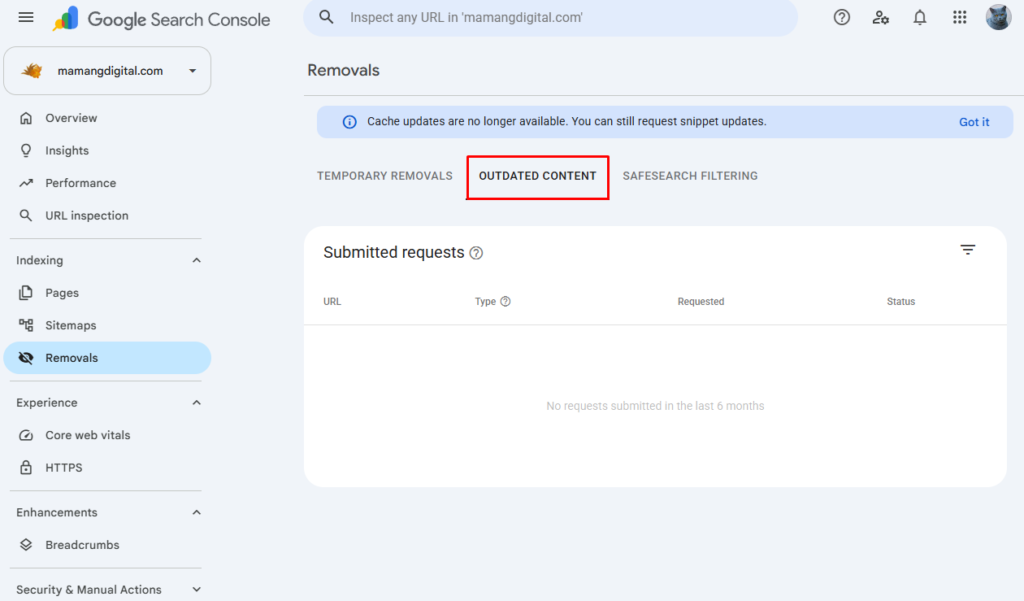
The condition is strict, and it’s why most requests get rejected: the page has to have actually changed. Google verifies this. If the content is still sitting there, the tool will refuse, and no amount of resubmitting will change that.
Separately, Google runs removal request forms for specific categories such as personal information and legal complaints. Those are handled under different policies and aren’t part of the Search Console workflow.
What Removal Doesn’t Do
Worth being clear about, because the gap between what people expect and what happens is wide.
It doesn’t delete anything from the internet. The page still exists, and anyone holding the link still reaches it.
It doesn’t touch other search engines. Bing has its own tool and its own timeline.
It doesn’t reach the Internet Archive, which keeps its own copies and has its own removal process.
And it doesn’t unpublish anything. If the real problem is that something is public, removing it from a search engine treats the symptom.
When the URL Won’t Go Away
The usual causes, in the order worth checking.
It’s blocked in robots.txt. Check this first, every time. Run the URL through URL Inspection. If it reports the page as blocked, Googlebot cannot see whatever removal signal you added, and nothing will happen until you unblock it.
It hasn’t been recrawled yet. Deleting a page doesn’t notify Google. Nothing happens until Googlebot returns, which on a small site can take weeks. Use URL Inspection and request indexing on the deleted URL, which sounds backwards but is the standard way to get Google to look at it again and notice it’s gone.
The page still returns 200. Open the URL in a private window. If it loads, it isn’t deleted, whatever your CMS told you.
You removed the wrong variant. The indexed URL might carry a trailing slash, a parameter, or an uppercase letter you didn’t reproduce. Copy the address exactly as it appears in search results.
Six months passed. If a page you removed last year has reappeared, the temporary removal simply expired. Check the Removals report for a status of Expired, then go back and apply a permanent method.
And a note on timing. Google gives no guarantee on how quickly a permanent removal takes effect, because it depends entirely on when your site next gets crawled. Days for a busy site, weeks for a new blog. If you want the crawl rate side of this, we covered it in getting new posts indexed faster, and the same factors work in both directions.
The Short Version
If it’s urgent, use the Removals tool now. It buys you six months and costs you five minutes.
Then, in the same sitting, do the permanent thing. Delete the page, or add noindex, or put a password on it. Set a reminder to check in a month.
Whatever you do, don’t block the URL in robots.txt and assume that finished the job. That single instinct is responsible for more stuck pages than every other mistake in this article combined.