
Search for information about Site Kit and you will find articles listing Google Optimize among its features. Some of them were published this year.
Google shut Optimize down on September 30, 2023, and removed the module from Site Kit entirely. That one detail tells you most of what you need to know about the state of writing on this plugin: a lot of it was copied from a 2021 article and given a new date.
So here is what Site Kit actually is in 2026, which eight modules you can genuinely connect, what the dashboard shows you, and the one thing about it that confuses almost every new user. There is also an honest answer to whether you need it at all, which is not automatically yes.
What Site Kit Actually Is
Site Kit is the official WordPress plugin built by Google. It is free, it has over 5 million active installations, and its job is to pull data from several Google products into a single dashboard inside your WordPress admin.
It also handles the setup side. Connecting Google Analytics normally means pasting a tracking snippet into your theme. Site Kit places that code for you and verifies your site with Search Console without you touching a template file or copying a meta tag.
Now the part the name gets wrong. Site Kit does not optimize anything. It is a reporting layer and a setup helper. It reads data from Google’s products and displays a summary of it. It does not change your titles, improve your speed, fix your schema, or adjust anything on your site.
That distinction matters because a lot of writing about this plugin implies it makes your site better. It does not. It shows you numbers. What you do with them is the part that makes your site better.
Current version numbering sits in the 1.179 range, it requires PHP 7.4 and WordPress 5.2 as a minimum, and it is tested against WordPress 7.0.
The Module That Almost Every Article Still Lists
Handling this before the feature list, because if you read another article after this one you will run into it.
Google Optimize was Google’s free A/B testing and personalization tool, and it used to be a Site Kit module. Google announced its shutdown in January 2023 and confirmed on its own support pages that Optimize and Optimize 360 stopped being available after September 30, 2023. Any experiments still running on that date simply ended.
Site Kit’s development team removed the module and even built a notification to warn site owners who still had it connected. You can read the removal ticket in the plugin’s public issue tracker.
Google has not shipped a replacement. Its stated position is that it is investing in third-party A/B testing integrations for Analytics rather than rebuilding its own tool. So if A/B testing is what you came here for, Site Kit is not the answer and has not been for nearly three years.
Treat any article that lists Optimize as a current feature as a signal about that article’s reliability generally.
The Eight Modules You Can Connect
This list comes from Google’s own documentation and the plugin’s current readme. Two modules are set up during the initial wizard and the rest are optional.
1. Search Console
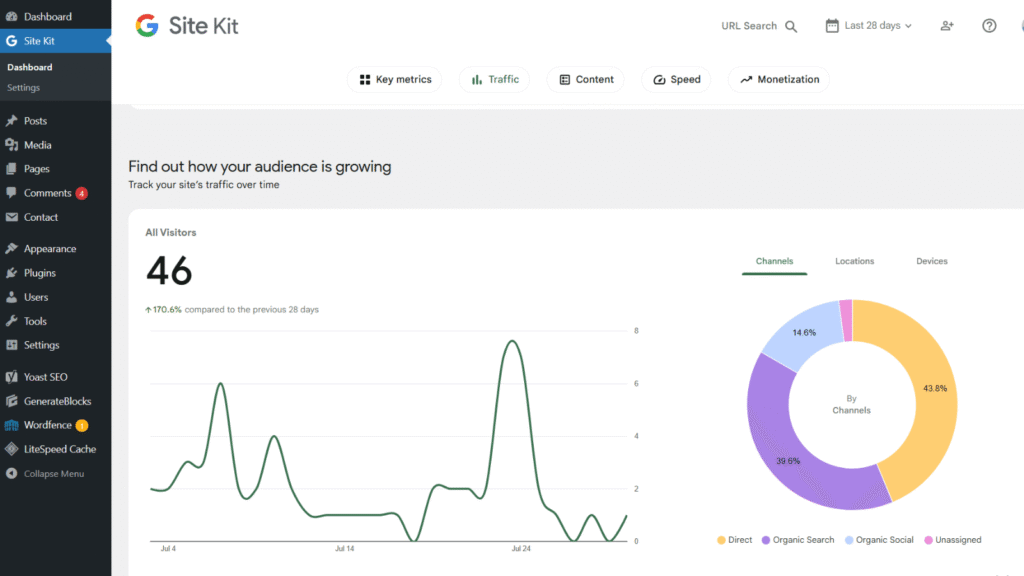
What it does. Reports how your site performs in Google Search: impressions, clicks, average position, and which queries brought people to which pages.
Dashboard data. Yes, and this is the core of what Site Kit displays. It is also the only mandatory module. Site Kit will not function without it. If you have not set up Search Console for your site yet, Site Kit will do it during the wizard.
Worth knowing. During setup, the admin who connects Site Kit is granted Owner permissions in Search Console using their own Google account. That is a real permission being assigned to a real person, so think about who runs the setup on a site you do not own alone.
2. Analytics
What it does. Connects Google Analytics 4 and places the tracking code for you. Reports sessions, users, engagement, traffic sources, and top pages.
Dashboard data. Yes, in summarized form. Site Kit also supports visitor grouping, which is one of its more recent additions, plus enhanced measurement and conversion tracking configuration.
Worth knowing. Site Kit anonymizes IP addresses by default when you activate this module. You can switch that off under Site Kit, Settings, Analytics, though there is rarely a good reason to.
3. AdSense
What it does. Reports what your site is earning from AdSense ads.
Dashboard data. Yes, including a top earning pages widget, which is the single most useful thing here for anyone monetizing content. Knowing which posts earn rather than just which posts get traffic changes what you write next.
Worth knowing. This reports earnings. It does not get you approved for AdSense and it does not place your ad units for you.
4. PageSpeed Insights
What it does. Runs your pages through PageSpeed Insights and shows how they compare to real-world sites, with actionable recommendations.
Dashboard data. Yes, and it is enabled by default with no additional permissions needed.
Worth knowing. The same data is available free at PageSpeed Insights without installing anything. The convenience is that it is already there when you are looking at your other numbers.
5. Tag Manager
What it does. Sets up Google Tag Manager on your site with no code editing. You then manage your actual tags inside the Tag Manager platform.
Dashboard data. No. Site Kit displays nothing from Tag Manager. This module is purely a setup convenience.
Worth knowing. Running Tag Manager and the Analytics module together is where people accidentally create duplicate tracking. Decide which one places your Analytics tag and do not do both.
6. Ads
What it does. Connects an existing Google Ads account or creates a new campaign, and places the Ads conversion tracking code on your site.
Dashboard data. Limited. This is mostly about getting the conversion tag placed correctly.
Worth knowing. If your conversion tag ID starts with AW-, Site Kit requires the Analytics module to be configured first.
7. Reader Revenue Manager
What it does. Connects Google’s publisher monetization tooling, covering subscriptions, contributions, newsletters, surveys, and custom prompts.
Dashboard data. None. Google’s documentation states plainly that Site Kit displays no Reader Revenue Manager data. You manage and read everything from Publisher Center directly.
Worth knowing. This module has been rolled out gradually rather than to everyone at once, so if you do not see it in your settings, that is why. It is also aimed at publishers with a real subscription or contribution model, not at general blogs.
8. Sign in with Google
What it does. Lets your visitors register and log in using their existing Google account instead of creating a password on your site.
Dashboard data. None. This is a functional feature rather than a reporting one, and it is the only module here that changes something your visitors actually see.
Worth knowing. Like Reader Revenue Manager, this rolled out gradually. It can also conflict with other authentication or membership plugins, and Site Kit ships warning notifications for exactly that scenario.
Which modules actually show you data
This trips people up, so here it is in one place.
| Module | Data in dashboard | Purpose |
|---|---|---|
| Search Console | Yes, core | Search performance |
| Analytics | Yes, summarized | Visitor behavior |
| AdSense | Yes | Ad earnings |
| PageSpeed Insights | Yes | Speed scores |
| Ads | Limited | Conversion tracking |
| Tag Manager | No | Setup only |
| Reader Revenue Manager | No | Setup only |
| Sign in with Google | No | Visitor login |
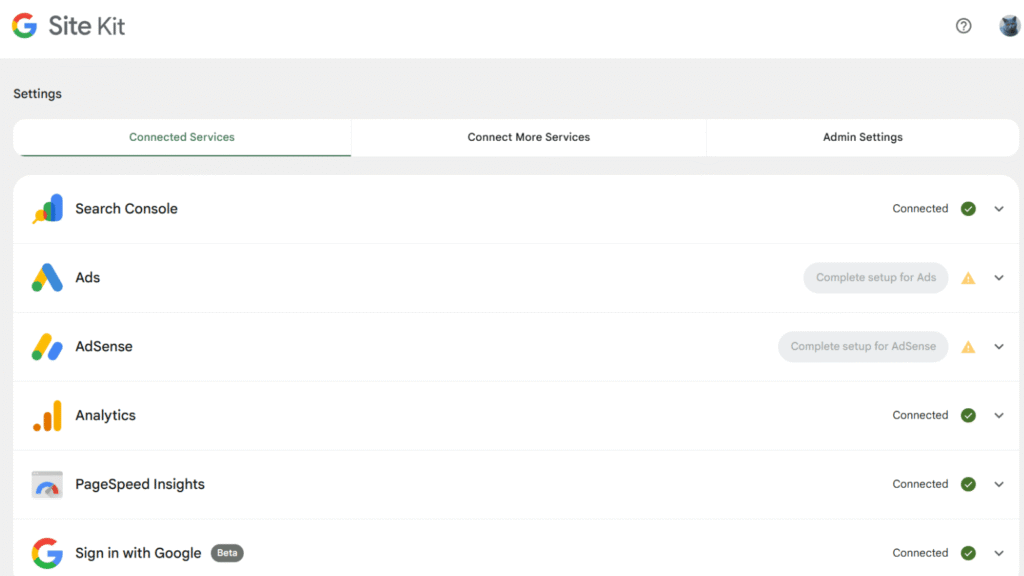
Four of the eight modules put nothing meaningful on your dashboard. If your reason for installing Site Kit is to see your numbers in one place, only the top four matter to you.
Why Your Numbers Will Not Match
This is the most common complaint about Site Kit and almost nobody explains it, so read this section even if you skip the rest.
You will look at Site Kit and see a handful of visits. You will look at your hosting panel or Cloudflare and see hundreds. One of them is not broken. They are counting different things.
JavaScript tracking versus server logs
Analytics works through JavaScript running in your visitor’s browser. Ad blockers, privacy-focused browsers, and tracking protection all stop that script from firing, and the visit is never recorded. Depending on your audience, that can be a large fraction of your real traffic.
Your hosting panel and Cloudflare count requests at the server instead, which nothing can block. They also count bots, crawlers, and uptime monitors as traffic.
So server numbers are inflated and Analytics numbers are deflated. Neither is your true visitor count. Use one of them consistently and watch the trend rather than chasing the absolute figure.
Search Console and Analytics disagree too
Search Console counts clicks from Google Search results. Analytics counts sessions on your site. A visitor who clicks and leaves before the script loads is one click and zero sessions.
These two figures will never match, and expecting them to is the mistake.
Today’s data is always incomplete
Search Console data lags by a day or two, and current-day figures in Site Kit are partial by nature. Google documents this behavior separately, alongside a list of known limitations, because of how often it gets reported as a bug. Do not judge a new post by what you see on the day you publish it.
Installing and Connecting Site Kit
The process takes about five minutes, and there are two prerequisites that catch people out.
Make sure your site is publicly live first
Site Kit cannot show data for a site that is in maintenance mode, password protected, or not yet published. Google states this explicitly. If you are setting up a site that is not live yet, wait.
Install from the plugin directory
Go to Plugins » Add New, search for Site Kit by Google, then install and activate. A new Site Kit menu appears in your admin sidebar.
Run the setup wizard and verify ownership
Click Start Setup. You will sign in with your Google account, grant Site Kit permission to view and manage your Search Console data, and verify ownership of the site. Search Console and Analytics are both configured during this flow.
The verification step is the genuinely useful part. Normally you prove ownership by uploading an HTML file or pasting a meta tag. Site Kit does it through the API instead, so there is nothing to copy.
Connect the other modules from Settings
Everything beyond Search Console and Analytics is optional and lives under Site Kit » Settings. Connect only what you will use. Each additional module is another Google permission granted and another moving part.
Know that every admin connects separately
This surprises almost everyone. If your site has multiple administrators, each one must connect their own Google account to see Site Kit data. Your connection does not carry over to them.
Site Kit has a dashboard sharing feature to work around this for people who need to view data without connecting an account, but the default behavior is per-user.
What Site Kit Cannot Do
Setting expectations properly, since almost every article on this plugin is a feature list with no limits section.
It does not replace Search Console or Analytics. Site Kit shows a summarized view. For custom reports, custom event tracking, URL inspection, index coverage detail, or manual action notices, you still open the real tools. Site Kit is a window, not a substitute.
It is not an SEO plugin. It does not write titles or meta descriptions, generate sitemaps, output schema, or manage redirects. You still need a dedicated SEO plugin alongside it, and the two do different jobs without overlapping.
It does not do A/B testing. Covered above. That capability left with Optimize in 2023.
It has no premium support. Site Kit is free with no paid tier, which means documentation and the WordPress.org support forum. There is no ticket you can escalate.
It adds admin weight. User reports of the WordPress admin slowing down after installing Site Kit are common enough to mention. Some of those cases turn out to be conflicts with other plugins rather than Site Kit itself, and the impact is mostly on your dashboard rather than your visitors’ page loads. Still, this is a plugin that makes external API calls to render its screens, and that is not free.
Should You Install It?
A straight answer rather than a sales pitch.
Install it if you are new to Google’s tools and the setup process is what has been stopping you, or you check your numbers often enough that opening two browser tabs every time has become a chore, or you run AdSense and want earnings sitting next to traffic, or you manage client sites and need a reporting view inside WordPress that clients can look at.
Skip it if you already live in Search Console and GA4 and are comfortable there, since Site Kit will only show you a thinner version of what you already read. Skip it too if you are fighting for every kilobyte of performance, or if you are the kind of site owner who checks analytics once a month, in which case a dashboard widget is solving a problem you do not have.
One thing to watch either way: if your SEO plugin or a separate analytics plugin already inserts a Google Analytics or Tag Manager snippet, adding Site Kit’s Analytics module on top means the tag fires twice. That inflates your session counts and corrupts your data quietly. Pick one plugin to own that tag.
Frequently Asked Questions
Is Site Kit by Google free?
Yes, entirely, with no premium tier and no paid upgrade. The Google services it connects to have their own pricing where relevant, but Search Console, Analytics, and PageSpeed Insights are all free too.
Does Site Kit include Google Optimize?
No. Google discontinued Optimize on September 30, 2023 and the module was removed from Site Kit. Articles that still list it are out of date, and Google has not released a replacement A/B testing tool.
Do I still need an SEO plugin if I have Site Kit?
Yes. Site Kit reports on your performance. An SEO plugin controls your titles, meta descriptions, sitemaps, schema, and redirects. They do not overlap at all, and running both is normal and correct.
Why does Site Kit show fewer visitors than my hosting panel?
Analytics relies on JavaScript that ad blockers and privacy browsers prevent from running, so it undercounts. Server-side statistics count every request including bots, so they overcount. Pick one source and follow its trend rather than trying to reconcile them.
Will Site Kit slow down my website?
The effect lands mainly on your admin dashboard rather than on visitor-facing pages, since that is where the API calls happen. Reports of significant slowdowns exist and are worth taking seriously, though several turn out to be conflicts with other plugins. Test it and check your own numbers.
Can two administrators share one Site Kit connection?
Not by default. Each administrator connects their own Google account to view data. Site Kit’s dashboard sharing feature exists specifically to give other users a view without their own connection.
Is Site Kit GDPR compliant?
Site Kit anonymizes IP addresses by default in the Analytics module and supports consent mode, and several consent plugins integrate with it directly to hold tracking until a visitor agrees. Compliance still depends on your own configuration and disclosures, so this is a starting point rather than a guarantee.
Where can I get Site Kit?
From the WordPress.org plugin directory, with full documentation at the official Site Kit site.
Install it, connect Search Console and Analytics, ignore the modules you have no use for, and then remember that a dashboard is not a strategy. Looking at your numbers more often does not improve them. Publishing better pages does.