
Google’s official help page for Blogger themes explains how to pick a built-in theme and how to back one up. It says nothing at all about installing a theme you downloaded from somewhere else, which is the reason almost everyone lands on this topic in the first place.
So the gap gets filled by tutorials, most of which tell you to click a “Backup / Restore” button in the top right corner of the Theme page. Go and look. There isn’t one. It moved behind a menu years ago, and the option called “Download full template” doesn’t exist either.
Here’s the current process, plus the two things nobody warns you about: the upload button fails fairly often and silently, and when a theme file refuses to save, the error Blogger shows you is written for a machine rather than for you.
Backing Up What You Have
Do this before anything else. Installing a theme overwrites your current one completely, and there’s no undo button.
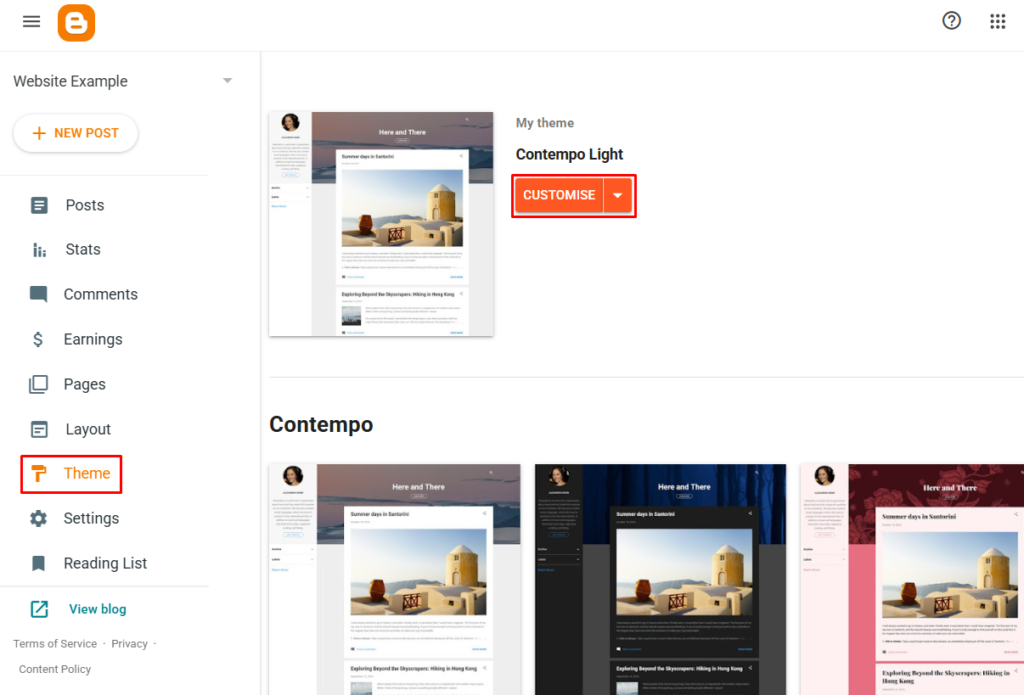
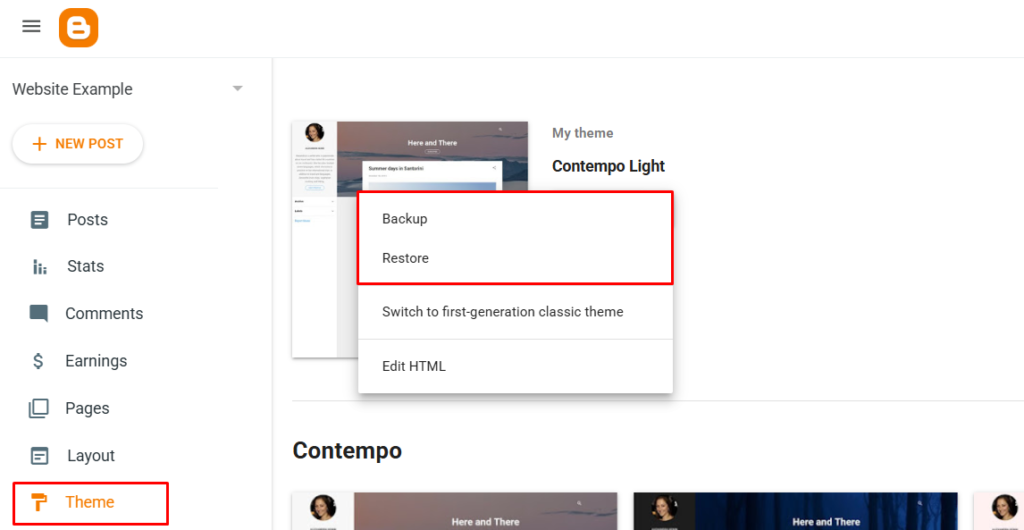
Go to Theme, find the down arrow next to the Customise button, and click it. That menu holds everything: Backup, Restore, Edit HTML, and the option to switch to classic themes.
Click Backup, then Download. You’ll get a file named something like theme-2887119284088758674.xml. Rename it to something you’ll recognise in six months, along the lines of theme-before-redesign-aug2026.xml, and put it somewhere that isn’t your Downloads folder.
Now the part that catches people badly.
| What you backed up | What you didn’t |
|---|---|
| Theme code and layout structure | Every post you’ve written |
| Widget arrangement | Pages and comments |
| Colour and font settings | Uploaded images |
That file is your design and nothing else. Your writing lives somewhere completely separate, under Settings » Manage blog » Back up content, and Blogger now hands that over as a .atom file rather than the .xml it used to produce. For a full copy including images, Google Takeout is the route.
Changing a theme shouldn’t touch your posts. But a five-minute content backup before you start rearranging things is cheap insurance, and plenty of people have discovered the difference between the two backups at exactly the wrong moment.
Getting the File Ready
Themes almost always arrive as a .zip. Blogger will not accept a .zip, and this is where a surprising number of people stall.
Extract it. Inside you’ll usually find several files: the theme itself as .xml, a readme, a licence, sometimes a documentation folder and a few images.
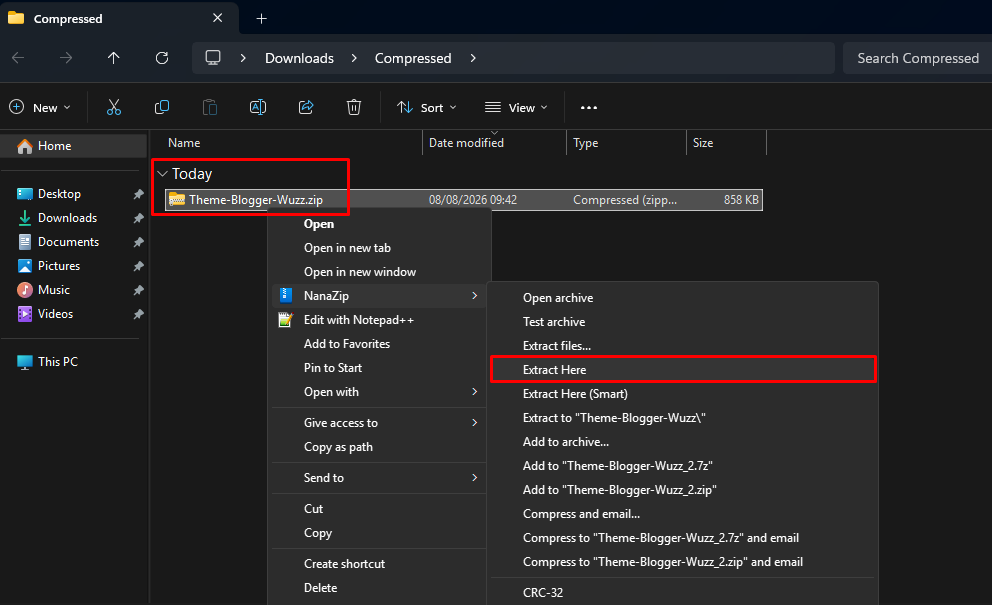
Only the .xml goes into Blogger. Ignore everything else, though it’s worth actually reading the readme, because some themes need a specific widget added or a setting changed before they display properly.
If a download gives you a folder containing several .xml files, one is usually a demo version with placeholder content baked in and one is clean. The readme will say which. If it doesn’t, that tells you something about the quality of the theme.
Uploading the Theme
Back to Theme » the arrow next to Customise » Restore.
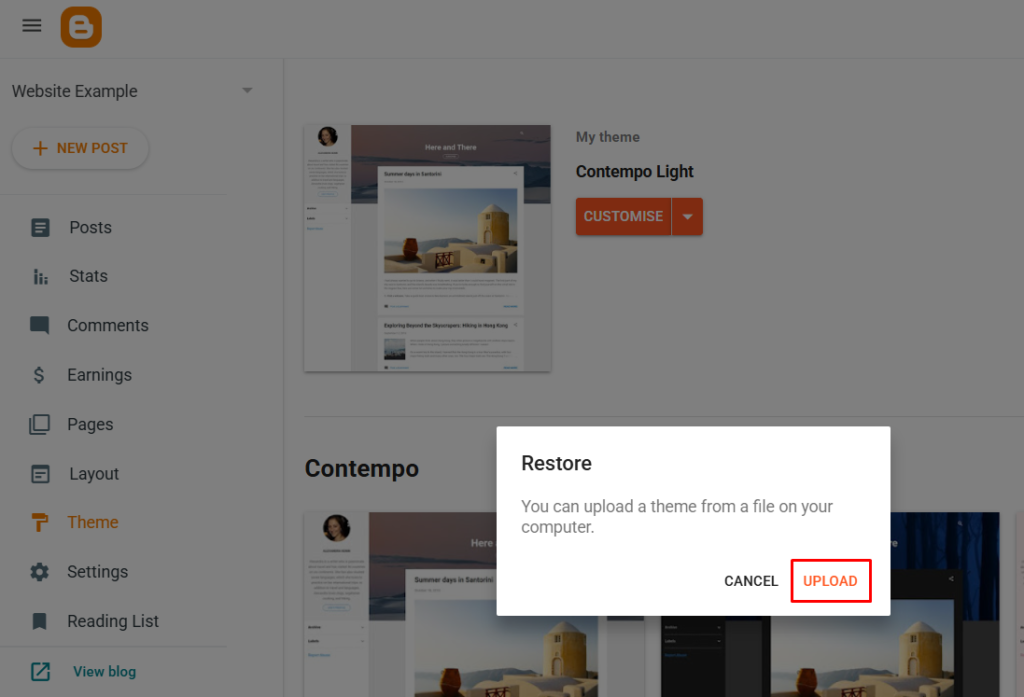
Click Upload, choose your .xml, and wait a few seconds.
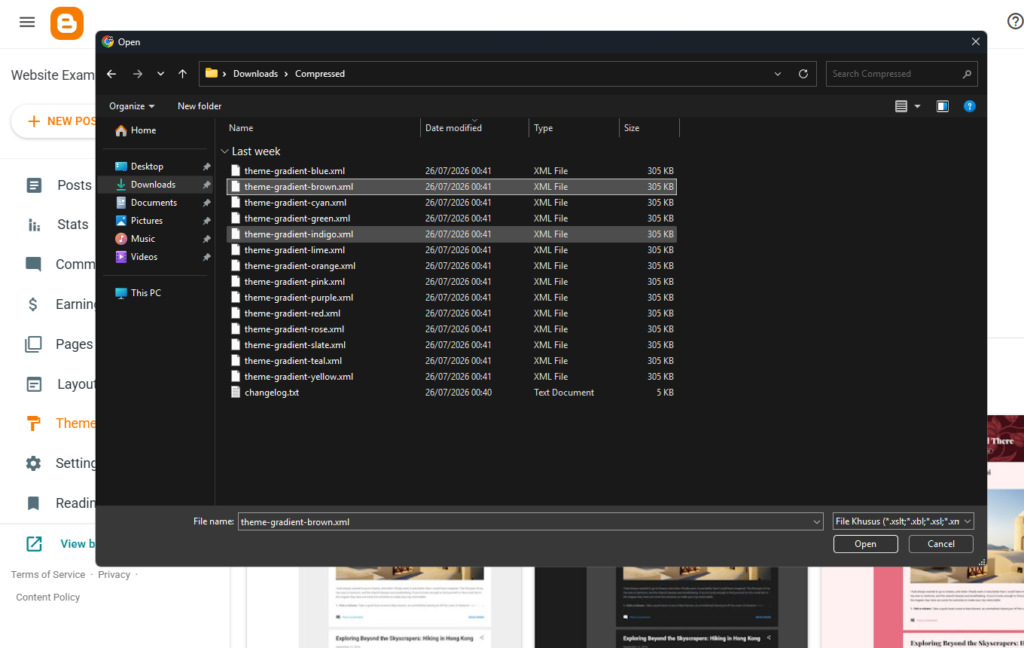
One thing to be clear about before you click: there is no preview. Blogger applies the theme immediately and your live blog changes for every visitor at that moment. If your blog already has readers, do this at a quiet hour rather than on a Monday morning.
Refresh your blog in a new tab. If it looks like the demo, you’re done and you can skip ahead to sorting out the widgets.
When Restore Refuses
Sometimes the upload does nothing. The dialog closes, no error appears, and your old theme is still there. Sometimes it throws a vague message about the file not being valid when the file is perfectly fine.
This is common enough that experienced Blogger users skip the Restore button entirely. The alternative always works.
Open the theme .xml in a plain text editor. Notepad works, Notepad++ or VS Code are better. Do NOT open it in Word, which will quietly corrupt it.
Select everything with Ctrl+A and copy with Ctrl+C. Then go to Theme » the arrow next to Customise » Edit HTML.
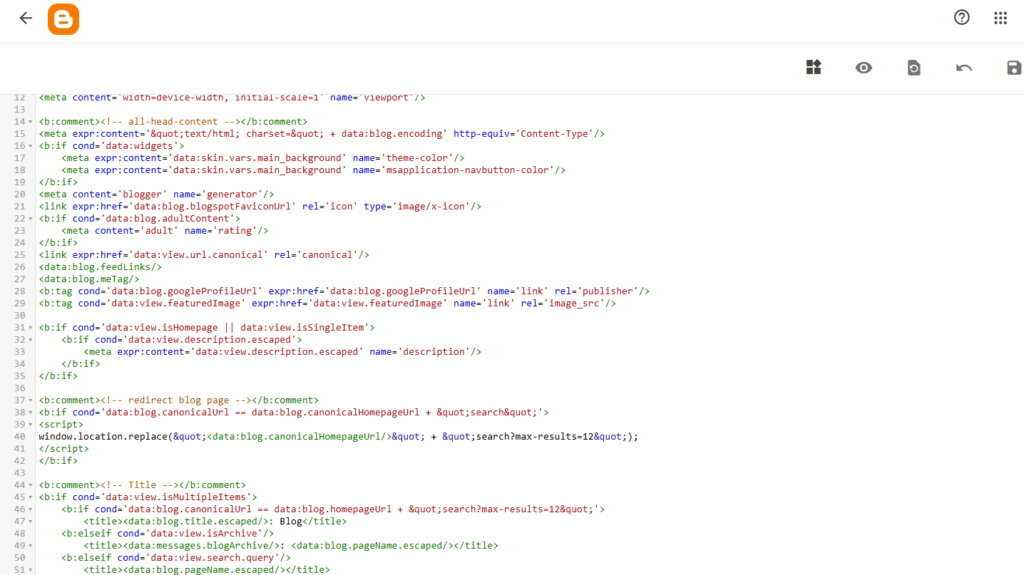
Click once inside the code editor, press Ctrl+A to select the existing theme, then Ctrl+V to paste over it. Click the save icon.
Two differences worth knowing between the methods. The paste method leaves your existing widgets in place, so you’ll have more tidying up to do afterwards. And the editor is genuinely awkward on a phone, so do this on a computer.
When the File Itself Is Broken
Sometimes the problem isn’t the button. You paste the code, hit save, and Blogger throws something like this at you:
Error parsing XML, line 247, column 61: The entity "nbsp" was
referenced, but not declared.
First, the reassuring part. Blogger validates a theme before it saves it, so a broken file gets rejected rather than applied. Your blog is still running the old theme and your readers haven’t seen anything. You have a file that won’t install, not a site that’s down. Nothing here is urgent.
The reason these messages look so alien is that a Blogger theme isn’t HTML. It’s XML, and XML is far stricter. Tags a browser forgives all day long will stop the parser dead. So the error you’re reading was written for a machine, not for you.
Here’s what each one actually means.
| The message | What’s really wrong | The fix |
|---|---|---|
| The entity “nbsp” was referenced, but not declared | XML only knows five entities, and isn’t one of them | Replace every with   |
| The reference to entity “X” must end with the ‘;’ delimiter | A bare ampersand somewhere, usually inside a Google Fonts URL | Write it as & instead |
| The element type “br” must be terminated by the matching end-tag | An unclosed tag. Applies to br, img, meta, link, input and hr | Close it: <br/>, <img ... /> |
| The content of elements must consist of well-formed character data | A raw < or > inside JavaScript, usually from a loop condition | Wrap the script in CDATA, or write < |
| Element type “div” must be followed by attribute specifications | An attribute with a missing or curly quote mark | Check the quotes on that line |
That last row is worth expanding, because it’s the single most common cause and the hardest to see.
The curly quote problem
If you copied theme code from a tutorial page rather than from a downloaded file, the site you copied from almost certainly converted your quotation marks. Straight quotes became typographic ones.
To a person these look nearly identical. To the parser they are completely different characters, and only one version works:
| Result | What the code looks like |
|---|---|
| Works | class="post" |
| Fails | class=“post” |
The same happens with apostrophes, and with hyphens quietly turned into longer dashes.
Copying rendered HTML from a web page also drags along invisible passengers: non-breaking spaces that look exactly like normal spaces, and zero-width characters that look like nothing at all.
The fix is not to hunt for them. Download the theme as a file and copy from that instead. If a site only offers code in a box on the page, treat that as a reason to find a different theme.
Using the line number properly
Blogger tells you the line and column. Most people ignore it, which is a shame, because it’s usually accurate to within a line or two.
Open the .xml in Notepad++ or VS Code rather than plain Notepad, since you need visible line numbers. Jump to the line the error named. Then look at the line above it as well, because an unclosed tag is reported at the point the parser gave up, not at the point the mistake was made.
Fix one error, save, and expect a second error at a different line. This is normal. The parser stops at the first problem it hits, so a file with four mistakes takes four rounds. Frustrating, but it does end.
Checking the file is complete
Before you debug anything, confirm you have the whole file. An interrupted download produces a theme that ends mid-tag, and the error it throws sends you hunting for a syntax mistake that doesn’t exist.
Scroll to the very bottom of the .xml. It should end with a closing </html> tag. If it stops in the middle of something, download it again.
While you’re there, check the file size against what the download page claimed. A theme that should be 200 KB and arrived as 40 KB is not going to install no matter what you do to it.
Two things that quietly corrupt the file
Opening it in Word. Word treats the file as a document, adds its own formatting, and converts your quotes on the way in. Same for Google Docs and for TextEdit in rich text mode. Once it’s saved, the damage is done.
Saving with the wrong encoding. A theme file needs to be UTF-8. Save it as ANSI and every accented character, every currency symbol and every emoji inside the theme turns into something the parser rejects. In Notepad++ this is under Encoding, and the setting you want is UTF-8 without BOM.
If you’ve been editing a file for an hour and the errors keep multiplying rather than shrinking, stop. Re-download the original and start again with a proper editor. Nine times out of ten that’s faster than repairing what you have.
Sorting Out the Widgets
Open Layout and expect a mess. This is normal and it isn’t a sign the theme installed wrongly.
Old themes and new themes name their widget areas differently, so widgets land in places that no longer exist, or duplicate, or vanish. What you’ll typically be doing:
Deleting duplicates left over from the paste method. Re-adding anything the theme removed, like your About section or a search box. Dragging widgets back into sections that make sense. And filling in the sections the new theme created but left empty, which often includes a featured post area or a social links bar.
If a widget you need has disappeared entirely, add it fresh rather than trying to recover it. Widget content is stored separately from the theme, and Blogger’s own backup warning notes that some gadgets may not be included in a theme backup.
Checking What You Just Installed
This section isn’t in any of the other guides, and it’s the one I’d least want you to skip.
A Blogger theme is a single XML file containing HTML, CSS and JavaScript, and it runs on every page of your blog with no permission system and no review process. Whoever wrote it can put anything in there. Free themes distributed through download sites are a well-known place for things you didn’t agree to.
Before you paste, search the file for these:
| Search for | Why |
|---|---|
| <script src= | Scripts loaded from someone else’s server, which they can change later |
| eval( | Almost always hiding something |
| atob( or base64 | Encoded strings, commonly used to hide footer links |
| <a href= | Credit links, sometimes several, sometimes invisible |
| document.write | Injecting content after the page loads |
A footer credit link is normal and fair. The theme author did the work. What isn’t fair is a link hidden with CSS so you can’t find it, or a chunk of encoded JavaScript that turns into links to a gambling site. Both are common in themes advertised as free premium downloads.
If you find encoded JavaScript you can’t read, don’t install the theme. There’s no way to be sure what it does, and you’re putting it on every page you own. We went through what to look for when picking one in the first place in free Blogger templates.
What Customise Can and Can’t Do Now
Blogger’s built-in themes come in two families. The contemporary ones, Contempo, Soho, Emporio and Notable, and the older classic ones like Simple and Awesome Inc.
Nearly every third-party theme you download is built on the classic structure. That has a consequence people find confusing: after installing one, the Customise panel often loses most of its options. The background picker, the width sliders and the font controls may all be gone or simply do nothing.
Nothing is broken. Those controls only work when the theme declares the variables they hook into, and most custom themes handle their own styling instead. From then on, changing colours and fonts means editing the CSS inside Edit HTML.
Worth knowing before you commit, especially if you chose Blogger to avoid touching code. WordPress handles this differently, with theme settings living in an interface rather than in the theme file, and we compared the two properly in Blogger vs WordPress and in choosing and installing a WordPress theme.
Testing Before You Commit
Because there’s no preview and no undo, the sensible move is to try the theme somewhere that doesn’t matter.
Create a second Blogger blog. It’s free, it takes a minute, and nobody has to know it exists. Install the theme there, write two dummy posts, and look at it properly on a phone as well as a laptop.
What to check while you’re there: whether the post layout holds up with real paragraphs and images rather than demo text, whether the mobile version is genuinely responsive, whether headings render at sensible sizes, and how long the homepage takes to load. Run it through PageSpeed Insights. A lot of free Blogger themes are beautiful and extremely heavy.
Once it’s on your real blog, go back through your SEO settings too. Some themes ship with their own meta tag handling that can conflict with what you’ve already configured, which we covered in Blogger SEO settings.
When It Goes Wrong
The usual failures and what’s actually behind them.
The upload does nothing. Use the Edit HTML paste method instead. Don’t spend an afternoon on this one, the button is simply unreliable.
The blog is blank or half-loaded. Restore your backup immediately, then investigate. This is exactly the situation the backup exists for, so don’t sit staring at a broken blog trying to fix it live.
It looks nothing like the demo. Almost always widgets, not the theme. Demo screenshots are taken with every section filled. Yours are empty. Open Layout and start filling them.
Old design still showing. Clear your browser cache or open the blog in a private window. Blogger applies themes instantly, so what you’re looking at is almost certainly a cached copy.
Posts have vanished. They haven’t. A theme change cannot delete posts. Check Posts in the sidebar and you’ll find them all there. What’s happened is that the new theme isn’t displaying them on the homepage, usually because a required widget is missing or the homepage is set to show a static page.
The Short Version
Back up the theme. Back up your content separately, because the first backup doesn’t include it. Extract the .zip and take only the .xml. Try Restore, and when it fails, paste into Edit HTML instead. Read the file before you install it. Then spend half an hour in Layout putting your widgets back.
If the file throws a parsing error, don’t panic and don’t start rewriting code. Nothing on your live blog has changed. Read the line number, check the quotes, and if the file was copied from a web page rather than downloaded, get a proper copy and start again.
The whole thing takes about twenty minutes when it works and an hour when it doesn’t. The one step you cannot skip is the backup, because there is no undo, and every horror story about this process starts at the same place.