Almost every guide to this says the same thing: Blogger’s contact form sends messages to the email you signed up with. That’s not quite right, and the small difference is exactly why people end up confused about where their messages are going.
It sends to the contact email in your Blogger profile, which can be a completely different address from the one you log in with. Changing it takes about thirty seconds once you know where it lives.
There’s also something more important the older tutorials can’t tell you, because it changed after they were written: on a lot of blogs the contact form has quietly stopped sending anything at all. So before you change the address, it’s worth making sure messages are arriving in the first place.
Where the Messages Actually Go
The Blogger contact form has a genuinely useful design. A reader types their name, their email and a message. Blogger forwards it to you. Your address is never shown on the page, so spammers scraping the web for email addresses never find yours.
The destination is not set on the widget. There’s no field on it for an email address, which is what throws people looking for one. The destination is a single account-wide setting, the Contact email address in your Blogger profile.
That matters for a reason people miss. It’s account-wide, so it’s the same address for every blog on your account. Change it for one and you change it for all of them. If you run several blogs and want messages going to different inboxes, this setting can’t do that on its own.
Checking the Form Is Even Working
Do this first, and don’t skip it, because it’s the part no other guide mentions and it’s the reason most “my email is wrong” problems aren’t about the email at all.
Open your blog’s contact page, or wherever the form sits, in a private browser window. Fill it in with a test message and send it.
Then wait a few minutes and check your inbox, including spam.
If nothing arrives, changing the destination address won’t help, because the form isn’t delivering anywhere. This has become common, and the cause is specific: Blogger changed how the form works, and it now depends on a piece of Blogger’s own script that many custom themes strip out to make pages load faster. Remove that script and the form still appears, still accepts a message, still says it was sent, and silently delivers nothing.
If your test message did arrive, good. Skip ahead to changing the address. If it didn’t, read the fix near the end of this article before you go any further, because there’s no point setting a destination for messages that never leave.
Changing the Destination Address
Assuming messages are arriving, here’s the actual change.
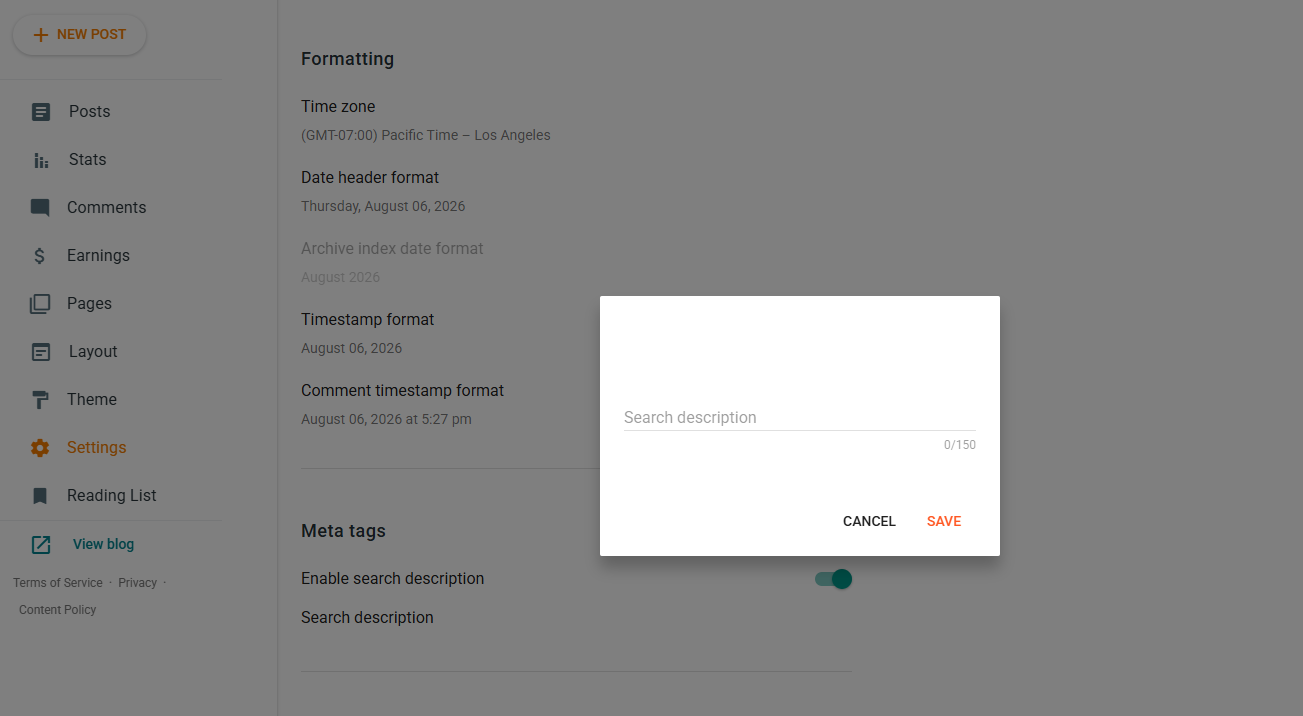
In your Blogger dashboard, go to Settings, scroll down to the General section, and click User Profile. This opens a separate page.
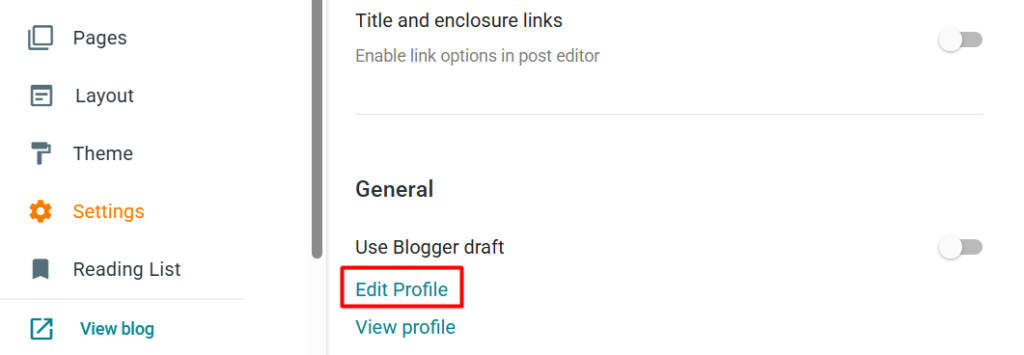
Scroll down that page to the field labelled Contact email address. Replace what’s there with the address you want messages sent to, and save.
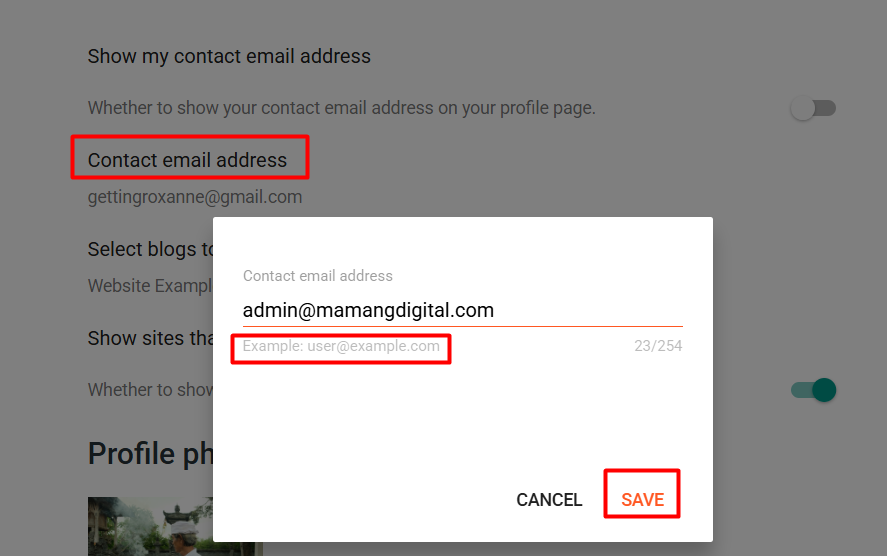
Just above that field is a separate toggle, Show my contact email address. These two are easy to confuse and they do completely different jobs. The field decides where messages go. The toggle decides whether your address is printed on your public Blogger profile page.
Leave that toggle switched off. Off is the default and it’s what you want, because the whole point of the contact form is that readers can reach you without ever seeing your address. Turning it on undoes that and puts your email back in front of the spammers you were avoiding.
That’s the whole change. No script to edit, no template to touch, nothing to paste. Every message from the contact form now goes to the new address.
Two more things worth knowing about that field.
It doesn’t have to be a Gmail address. Any working email you actually check will do, including one on your own domain if you’ve set up forwarding through something like Cloudflare Email Routing.
And changing it here doesn’t change the email you log in with. Your Google sign-in stays exactly as it was, and you’ll notice the Username field on that same page still shows your login address, greyed out and unchangeable. The Contact email address is a separate field precisely so the two can differ.
Why You’d Want a Separate Address
You don’t have to change this at all. But there are good reasons to, and they’re worth a moment because they affect which address you pick.
Keeping blog mail out of your personal inbox. The obvious one. Contact form messages, and the spam that eventually finds any form, land somewhere separate from your actual life.
Looking like a real site. A message form that reaches admin@yourdomain.com reads differently to a potential advertiser than one reaching yourname1998@gmail.com. If you’ve set up email on your own domain, use it here.
Sharing a blog later. If someone else ever helps run the blog, a shared address means contact messages don’t all funnel into one person’s private Gmail.
If you don’t have a domain email yet, that’s a separate and genuinely free setup, and it pairs naturally with this. We went through it in making a free custom domain email with Cloudflare.
Adding the Form If You Don’t Have One
If there’s no form on your blog yet, there’s nothing to change the destination of. Adding it takes a minute.
Go to Layout, find a widget area, and click Add a Gadget. Choose Contact Form from the list and save.
The widget can only be added through Layout, into a widget area your theme provides, usually the sidebar or footer. If you’d rather have a proper contact page than a sidebar box, the common approach is to add the gadget to the footer, then link a static page to it, but be aware that the further you get from the default setup the more likely you are to hit the delivery problem described next.
When the Form Sends Nothing
This is the problem the old tutorials predate, and it’s worth understanding rather than just working around.
Blogger’s contact form relies on a script that Blogger includes in your page automatically. Many custom and premium themes remove Blogger’s built-in scripts deliberately, because they slow the page down, and most of the time you never notice what’s missing. The contact form is the thing that breaks, because it’s one of the few features that actually depends on those scripts.
The symptom is specific and misleading: the form looks fine, accepts a message, shows a success confirmation, and delivers nothing.
What to check, in order.
Test on a default theme. Temporarily switch to one of Blogger’s own themes like Contempo, then send a test message. If it arrives on the default theme but not on yours, your theme is the cause, and it’s the missing script.
Look for the required tag. A working contact form needs Blogger’s script include present in the theme. If your theme was stripped down for speed, that’s what’s gone. Whoever made the theme, or their documentation, will know which include restores it. Swapping themes is its own small job, and we walked through doing it safely in changing your Blogger template.
Check spam and the address itself. Before blaming the theme, rule out the simple things. Confirm the contact email is spelled correctly and check the spam folder of the destination account.
If the built-in form is more trouble than it’s worth on your theme, the honest alternative is a third-party form service embedded in a static page. That’s a different setup with its own trade-offs, but it doesn’t depend on Blogger’s scripts and it usually gives you a real destination field instead of a hidden profile setting.
Quick Answers
Messages stopped after changing the address. Send a test. If nothing arrives at the old or new address, it’s the delivery problem, not the address. The change probably had nothing to do with it and the timing was a coincidence.
Can each blog have its own address? Not from this setting, which is account-wide. You’d need a separate Google account per blog, or a third-party form.
Will readers see the new email? Not unless you turn on the “Show my contact email address” toggle. Leave it off and the destination is never shown on the page.
Does this change my login email? No. Login stays with your Google account. This field only routes contact messages.
Messages arrive but land in spam. They come from Blogger’s servers rather than the sender, so mark one as not spam and add the sender to your contacts. Later ones should arrive normally.
The Short Version
Send yourself a test message first. If it arrives, go to Settings » General » User Profile, change the Contact email address, leave the show-email toggle off, and save. That’s the whole job, and it applies to every blog on your account at once.
If the test message doesn’t arrive, the address was never the problem. Your theme has stripped out the script the form needs, and no amount of changing the destination fixes a form that isn’t sending. Test on a default theme to confirm it, then decide whether to restore the script or move to a form that doesn’t need it.