
Your WordPress site feels sluggish, and every guide you open tells you to install yet another plugin to fix it. But you already have a pile of plugins, and adding more to solve a speed problem feels a little like fixing clutter by buying more boxes. The good news: a lot of what slows a WordPress site down can be fixed without installing anything new at all.
This guide focuses on the speed improvements you can make without adding plugins, things like trimming what you already have, optimizing images before upload, and using settings your site already offers. We will be honest about the limits of this approach too, and about a few changes you should not rush into as a beginner because they can break your site. Let us make your site faster, carefully.
First, Find Out What Is Actually Slow
Before changing anything, measure. Guessing at speed problems wastes effort and can make you fix things that were never the issue. Run your site through a free speed test like Google PageSpeed Insights or GTmetrix, which we cover in our guide to the best SEO tools, and read what they flag.
These tools tell you exactly what is dragging your site down: oversized images, too much code, slow server response, and so on. That matters because the right fix depends entirely on the real cause. A site slowed by huge images needs a different solution than one slowed by a bloated theme. Measure first, then fix the things that actually show up, rather than applying random tips and hoping.
One honest note before you start changing things: if your site is live and you are about to make changes, it is wise to have a recent backup, which most hosts can create for you from your hosting dashboard. None of the steps below are dangerous on their own, but a backup means you can always undo anything with peace of mind.
Optimize Your Images Before You Upload Them
This is almost always the biggest win, and it needs no plugin at all. On most slow sites, large images are the single heaviest thing on the page, and they are entirely within your control.
The fix has two simple parts. First, resize images to the actual size they appear on your site before uploading. A photo straight from a phone or camera can be several thousand pixels wide, far larger than your content area needs, which wastes huge amounts of load time. Second, compress the image to shrink its file size, ideally keeping each one well under a megabyte. You can do both with free online tools before you ever upload, so your site only ever serves lean, fast images.
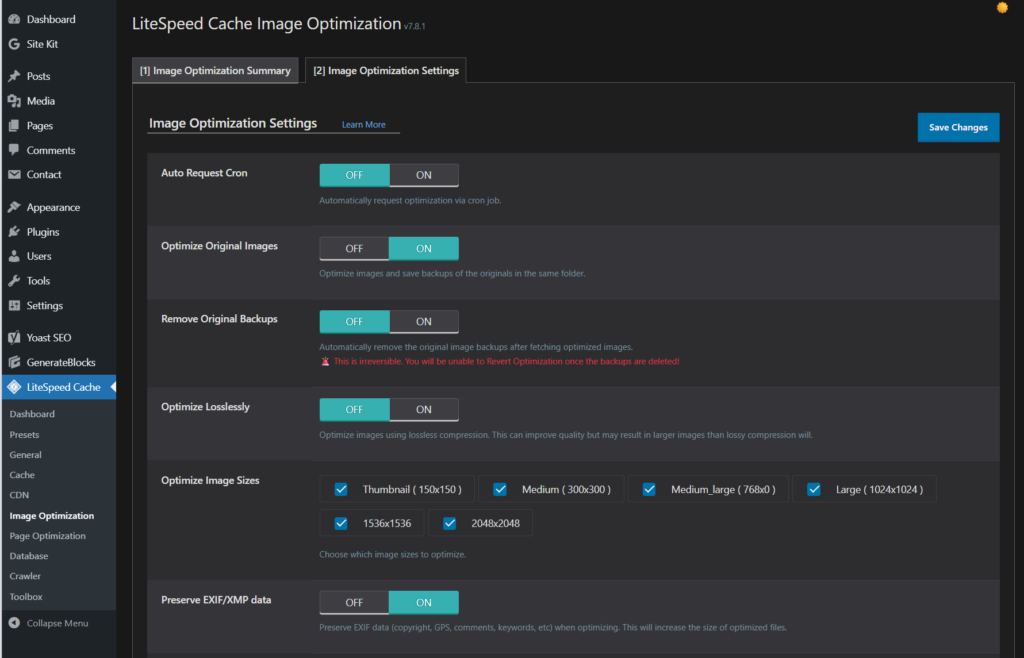
Using a modern image format like WebP helps too, since it produces smaller files than older formats at the same quality. The habit to build is simple: never upload a raw, full-size image straight from your device. A few seconds of resizing and compressing per image saves your visitors real load time, and costs you nothing.
Delete Plugins and Themes You Are Not Using
Here is the irony of fixing speed by adding plugins: plugins themselves are often the problem. Every active plugin adds code that runs when your page loads, and a pile of them, especially unused or poorly built ones, quietly drags everything down.
So do an honest audit. Go to your Plugins page and look at what is actually installed. Anything you no longer use, deactivate and then delete. Deactivating alone is good, but deleting unused plugins fully removes their weight and also closes potential security holes. Do the same with themes: under Appearance, then Themes, you only need your active theme (and perhaps one default theme as a fallback). Delete the rest. This single cleanup often produces a noticeable speed gain and costs nothing but a few minutes.
Going forward, treat plugins as a cost, not a free addition. Before installing one, ask whether you truly need it. A lean site with a handful of well-chosen plugins will almost always outrun a cluttered one.
Choose a Lightweight Theme
Your theme is the foundation everything else loads on top of, and a heavy, feature-stuffed theme can slow every single page no matter what else you do. Some themes pack in sliders, animations, and dozens of options that load extra code on every visit, much of which you never use.
If your theme is bloated, switching to a lightweight, well-coded one is one of the most effective speed improvements available, and it does not require a plugin. Lightweight themes are built to load only what is needed, giving you a fast base to work from. If you suspect your theme is the bottleneck, that is worth testing carefully. Just remember that changing themes on a live site affects how everything looks, so it is best tried when you have time to review your pages afterward, ideally with that backup in place.
Clean Up Your WordPress Database
Over time, WordPress quietly accumulates clutter in its database: old post revisions, trashed items, spam comments, and leftover data. A bloated database can make your site slower to respond, and trimming it helps.
Now an honest caution, because this is where “without a plugin” gets risky. Cleaning a database manually means working in a tool called phpMyAdmin and running database commands directly, and a wrong move there can genuinely break your site. For a beginner, this is the one area I would not do by hand. So here is the honest trade-off: the safest way to clean your database is actually a trusted optimization plugin that does it for you with safeguards, which contradicts the no-plugin theme but protects your site. If you are determined to avoid plugins, at minimum take a full backup first and only proceed if you are comfortable, otherwise leave the database alone. Speed is not worth a broken site.
A gentler, no-risk version: you can reduce future clutter by limiting how many post revisions WordPress stores, but since that involves editing a configuration file, treat it as advanced and skip it if you are unsure. The everyday habit that helps safely is simply emptying your trash and deleting spam comments regularly from inside the normal WordPress dashboard.
Use the Speed Settings You Already Have
Before adding anything, look at what your site already includes. Many themes and hosts offer speed features that are simply switched off by default, and turning them on costs nothing.
Check your theme’s settings for built-in options like lazy loading, which delays loading images until a visitor scrolls to them. Check your hosting dashboard too: good hosts offer server-level caching, the latest PHP version, and modern connection protocols, often as simple toggles or one-click settings. Making sure you are on the newest PHP version your host offers, for instance, can meaningfully speed up your site and is usually just a dropdown in your hosting panel. These existing features often give real gains with no new plugin and no risk.
The Honest Limit of Going Plugin-Free
Let us be straight about something most plugin-free guides gloss over. You can get a WordPress site quite fast without plugins using the steps above, but one thing is genuinely hard to do well by hand: full page caching.
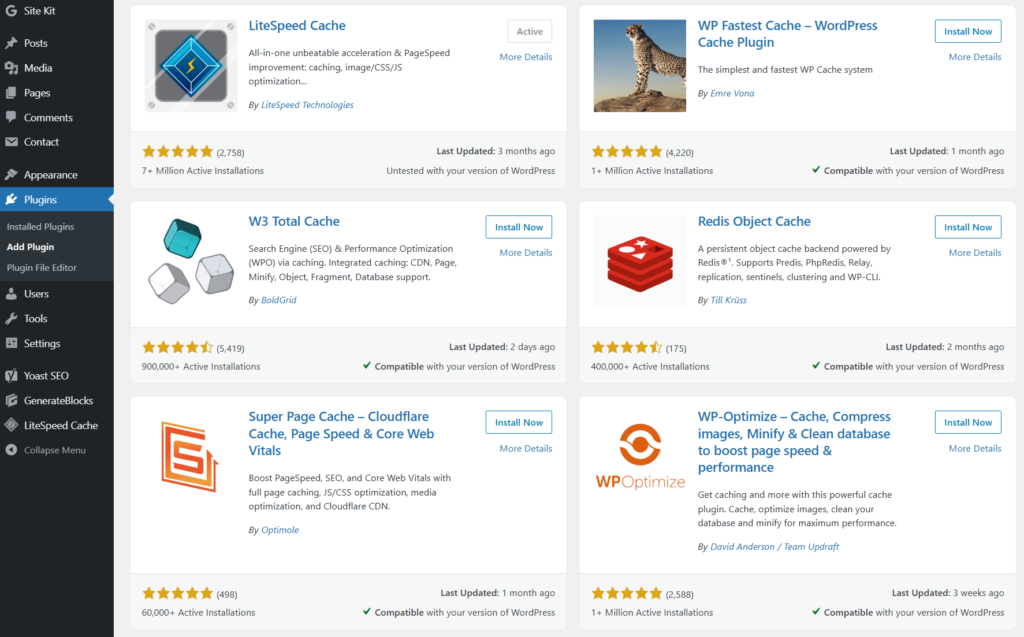
Caching, which stores a ready-made version of your page so the server does not rebuild it on every visit, is one of the biggest speed boosts available, and for most people the practical way to get it is a caching plugin or a caching feature from your host. Many quality hosts handle caching at the server level so you need no plugin at all, and some setups include an efficient caching plugin already. So the honest conclusion is this: do all the plugin-free optimization above first, because it is real and it helps, but do not treat “no plugins ever” as a rule worth hurting your speed over. A single good caching solution is worth having. The goal is a fast site, not a plugin count to brag about.
Speed also connects directly to how you rank, since Google factors page experience into search. Once your site is faster, it is worth understanding how that fits into the bigger picture of being found, which our SEO guides cover, starting with the basics of how indexing and ranking work.
Frequently Asked Questions
Can I really speed up WordPress without any plugins?
To a large degree, yes. Optimizing images before upload, deleting unused plugins and themes, choosing a lightweight theme, and using existing host and theme settings all improve speed with no new plugin. The main exception is full page caching, which is usually easiest with a caching plugin or a host that provides it.
What slows down a WordPress site the most?
For most sites, large unoptimized images are the biggest culprit, followed by too many plugins, a heavy theme, slow hosting, and a cluttered database. Running a free speed test shows which of these applies to you, so you can fix the real cause instead of guessing.
Is it safe to clean my database without a plugin?
For beginners, not really. Manual database cleanup means running commands in phpMyAdmin, where a mistake can break your site. A trusted optimization plugin is actually the safer route here, despite the plugin-free goal. If you avoid plugins, always take a full backup first and only proceed if you are confident.
Will deleting plugins lose my content?
Deleting a plugin removes its features, not your posts or pages, which live separately in your content. However, some plugins create specific content or settings, so deactivate first, check nothing important breaks, then delete. Keeping a backup before major cleanup is always sensible.
Does site speed actually affect SEO?
Yes. Google uses page experience, including loading speed, as part of how it ranks pages, and slow sites also tend to lose visitors who leave before the page loads. Faster pages help both your search visibility and your readers, which is why speed is worth the effort.