Your WordPress site is set up, and now you are staring at thousands of themes, each one promising to make your site look professional. It is an oddly stressful decision for something that sounds simple, and one wrong click feels like it might undo everything you have built. It will not, and once you understand what a theme actually does, the whole decision gets much less intimidating.
This guide covers what a WordPress theme actually controls, how to choose one without getting overwhelmed, the safe ways to install it, and the one habit that saves you real grief if something goes wrong. Let us start with the reassurance that matters most.
What a Theme Actually Controls (and What It Does Not)
Here is the fact that removes most of the anxiety around choosing a theme: a theme controls your site’s design, layout, colors, and typography. It does not control your actual content. Your posts, pages, images, and comments all live separately from your theme, in your site’s database, and they stay completely safe no matter how many times you switch themes.
What can change when you switch themes is how that content is displayed, and sometimes elements tied specifically to your old theme, like certain widgets, custom colors, or design tweaks you made through the Customizer, can reset or disappear. So switching themes is genuinely safe for your writing, but it is not entirely without consequence for your site’s appearance, which is why we will come back to one important habit before you switch.
Where to Find Themes Safely
Not all sources of WordPress themes are equally trustworthy, and this matters more than most beginners realize. The official WordPress theme directory, browsable directly from your dashboard, only lists themes that have been reviewed for basic quality and security, making it the safest starting point for anyone.
Premium themes purchased directly from a reputable developer are also generally safe, since a real business has a reputation to protect. The genuine danger zone is free downloads of premium themes from random third-party sites, often called nulled themes. These frequently contain hidden malware, and using one is one of the most common ways a WordPress site gets compromised. We cover why this matters in more depth in our guide on securing WordPress without paid plugins. The simple rule: only install themes from the official directory or a developer you can verify is real and reputable.
What Actually Matters When Choosing a Theme
With thousands of options, it helps to know which factors genuinely matter and which are just visual preference. A few things are worth checking every time.
How lightweight it is affects your site’s speed directly, since a bloated theme loads extra code on every single page regardless of what you actually use. We cover choosing a lightweight theme as part of a broader speed strategy in our guide on speeding up WordPress without a plugin. Mobile responsiveness is non-negotiable today, since most visitors browse on a phone, so any theme you consider should look and work well on a small screen, not just a wide desktop preview. Active maintenance matters more than beginners expect: check when the theme was last updated and how many active installations or reviews it has, since an abandoned theme can quietly become a security risk over time as WordPress itself evolves around it.
Beyond that, the honest truth is that design is largely personal preference. Pick something clean and uncluttered that fits how you want your content to look, and resist the pull toward flashy, feature-stuffed themes that promise everything at once, since those are often the slow, bloated ones the speed guide above warns about.
The Three Ways to Install a Theme
Once you have picked a theme, installing it is usually just a few clicks. There are three methods, and which one you need depends on where your theme came from.
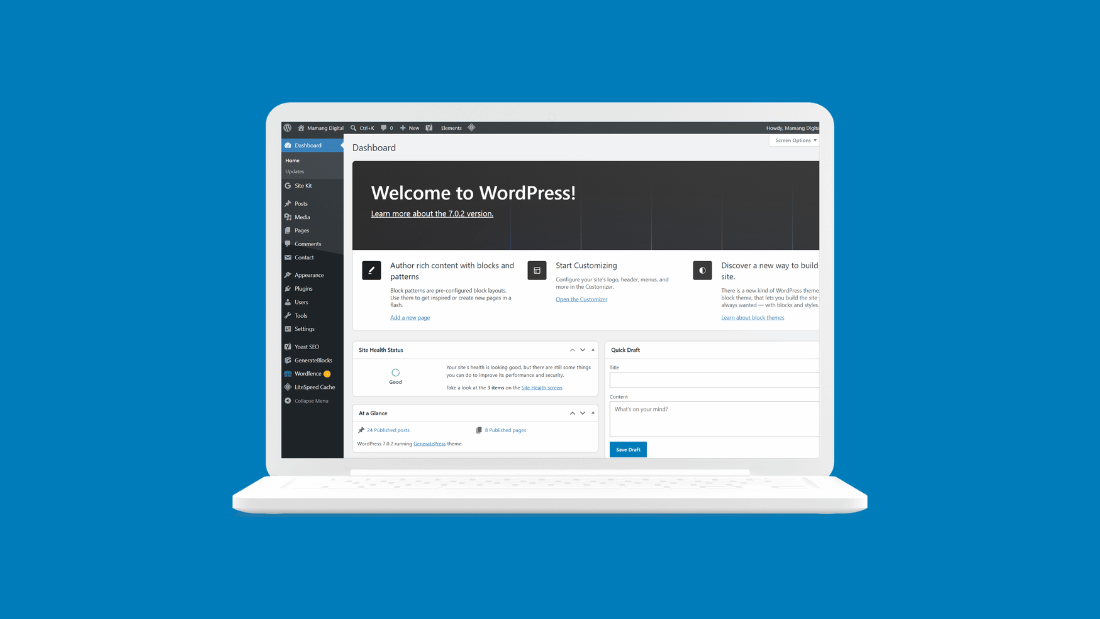
The simplest method works for anything in the official directory. In your dashboard, go to Appearance, then Themes, then Add New. Search or browse for the theme you want, click Install, and then Activate once it finishes. This is the safest and easiest path, and it is all most beginners will ever need.
If you purchased a premium theme, you will usually have a ZIP file to upload instead. From the same Themes screen, click Add New, then Upload Theme, choose the file from your computer, and click Install, followed by Activate.
Occasionally a theme file is too large for your host’s upload limit, in which case you would use FTP to upload it directly to your server’s files. This is a more technical method involving an FTP client and your hosting credentials, and most beginners will never need it, since it only applies when the simpler upload method fails.
Before You Switch: The One Habit That Saves You Grief
If you are switching themes on a site that is already live, with real visitors and content, there is one honest precaution worth taking every time: back up your site first. Your posts and pages will be fine regardless, but if the new theme looks wrong, breaks a layout you liked, or something unexpected happens, having a recent backup means you can undo the whole thing calmly instead of panicking.
Our guide on how to back up a WordPress site for free walks through doing this in a few minutes with no cost. It is a small step that turns “I hope this goes well” into “I know I can undo this if it does not,” which is exactly the confidence you want before making a visual change to a live site.
After You Install: What to Check
Once your new theme is active, spend a few minutes reviewing your site before considering the job done. Check your homepage, a regular post, and a page on both desktop and mobile, since a theme can look different on each. Look at your menus and widgets, since these sometimes need to be reassigned after a theme switch. And if the theme prompts you to install recommended companion plugins, it is generally fine to do so, since these are often built specifically to unlock features the theme relies on, though you can always skip anything you do not actually need.
From there, the Customize screen under Appearance is where you fine-tune colors, your site identity, and layout details to make the theme genuinely yours rather than leaving it at its generic default. Take your time here; a theme that feels like an off-the-shelf template is far less memorable than one shaped, even lightly, to fit your own site.
Frequently Asked Questions
Will I lose my posts if I change my WordPress theme?
No. Your posts, pages, images, and comments are stored separately from your theme and remain completely intact when you switch. What can change is how that content is displayed, and some theme-specific elements like certain widgets or custom design tweaks may reset.
Are free WordPress themes safe to use?
Themes from the official WordPress theme directory are reviewed and generally safe. The real danger is free downloads of premium themes from unofficial third-party sites, often called nulled themes, which frequently contain hidden malware. Stick to the official directory or a verified, reputable developer.
Should I back up my site before changing themes?
Yes, especially on a live site with existing visitors. Your content stays safe regardless, but a backup lets you undo any layout issues or unexpected problems calmly rather than scrambling to fix them live. It takes only a few minutes and removes most of the risk.
How do I know if a theme will slow down my site?
Heavier, feature-stuffed themes with sliders, animations, and many built-in options tend to load more code and run slower. Checking a theme’s performance with a free speed test before committing, and generally favoring simpler, well-coded themes, helps you avoid this.
What is the easiest way to install a WordPress theme?
For themes in the official directory, go to Appearance, then Themes, then Add New, search for the theme, click Install, then Activate. This works entirely inside your dashboard with no file uploads, making it the simplest method for the vast majority of beginners.