Your WordPress site is up, your theme is installed, and it looks… exactly like everyone else’s. You want your own logo, your own colors, a menu that makes sense. But every guide you open either assumes you know CSS or tries to sell you a page builder plugin before the third paragraph.
Here is the honest version: WordPress has everything you need built in, for free, and none of it requires code. This guide shows you where those tools are, which changes actually matter, and why you probably do not need the plugin someone is trying to sell you.
First, Find Out Which Editor You Have
Before anything else, you need to know which of two systems your site uses, because the instructions differ completely and this is where most beginners get stuck following the wrong tutorial.
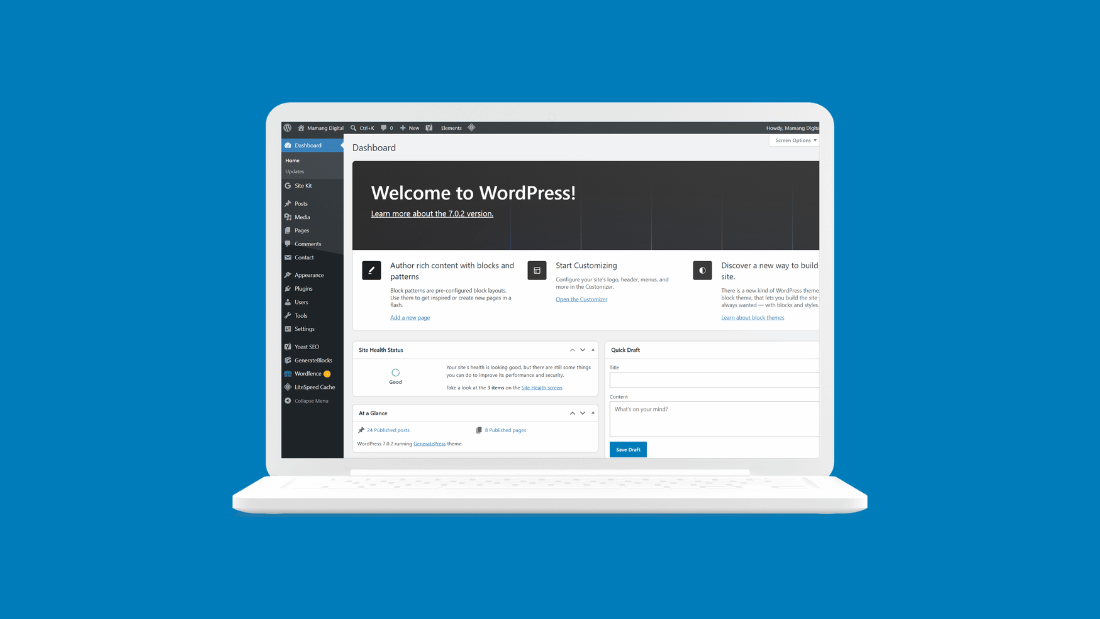
Go to Appearance in your dashboard and look at what appears underneath. If you see Editor, you have a block theme and you will use the Site Editor. If you see Customize and Menus instead, you have a classic theme and you will use the Customizer. That is the entire test, and it takes five seconds.
Neither is better or broken, they are simply two generations of the same idea. Block themes have become the standard for new themes, while many excellent classic themes are still widely used and fully supported. We explain why your Appearance menu might look different from tutorials in our map of the WordPress dashboard.
Customizing a Classic Theme
If you found Customize under Appearance, this section is yours. The Customizer opens a live preview of your site with a settings panel on the left, and every change you make appears instantly before you commit to it, which makes it genuinely safe to experiment.
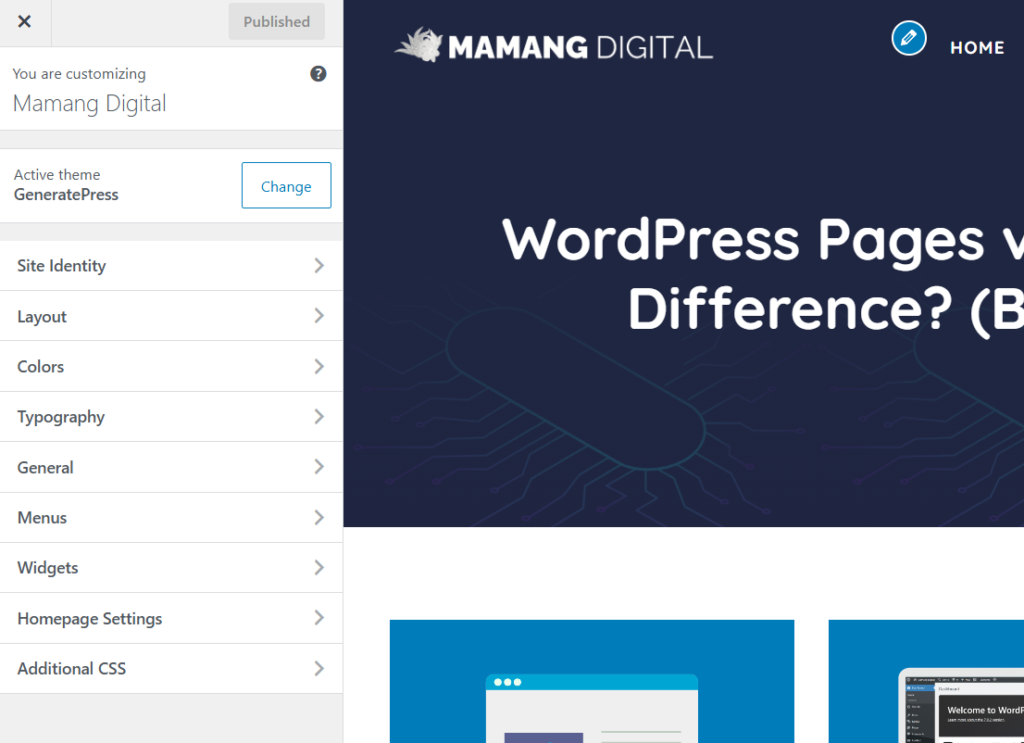
Inside, Site Identity holds your site title, tagline, logo, and the small icon that appears in browser tabs. Colors and Typography control your palette and fonts, though the exact options depend on your theme. Menus is where you build your navigation, and Homepage Settings decides whether your front page shows your latest posts or a static page you choose.
The important habit here is simple: change one thing, look at the preview, and only click Publish when you are happy. Nothing is saved until you do, so nothing you try can break anything.
Customizing a Block Theme
If you found Editor under Appearance, you have the Site Editor, which is more powerful but arranged differently enough to feel disorienting at first. Instead of a settings panel, you edit your actual site visually, the same way you edit a post.
The sidebar gives you a few main areas. Styles is where colors and fonts live, and it usually includes ready-made style variations that restyle your whole site in one click, which is the fastest way to make a site feel like yours. Navigation is where your menus are built, replacing the old Menus screen. Templates and Patterns control the layouts behind your pages and reusable blocks of design.
The mental shift that trips people up: you are no longer choosing from a list of settings someone prepared for you, you are editing the site itself. That feels strange for about ten minutes and then feels obvious. Start by opening Styles and trying a different style variation, since it is a big visual change with a single click and nothing to lose.
The Changes Worth Making First
You could spend weeks adjusting things nobody notices. These few changes give you most of the visible difference, so do them first and then stop.
Add your logo and site icon, since a default or missing logo is the fastest way for a site to look unfinished. Set your colors and fonts to something consistent, and resist using more than two or three of each. Build a clear menu with only the pages people actually need, because a short menu is easier to use than a long one. Decide your homepage, either your latest posts or a static page. And make sure your site title and tagline say what your site actually is, since they appear in search results and browser tabs.
That is a genuinely complete starting point. Everything beyond it is refinement, and refinement matters far less than publishing good content.
Do You Need a Page Builder?
Now the honest part that many guides avoid, because page builder plugins pay commissions. Page builders are drag-and-drop design plugins that sit on top of WordPress and offer more layout freedom than the built-in tools. They are genuinely capable, and they are also, for most beginners, unnecessary.
The reasons to think twice are real. A page builder adds significant weight to your site, which can slow your pages down, and speed affects both readers and search visibility, as we cover in our guide on speeding up WordPress without a plugin. Builders also create a lock-in problem: content built with one is difficult to move away from later, because it depends on that plugin continuing to exist. And the built-in tools have improved so much that the gap they once filled is far narrower than it used to be.
So the honest recommendation is this. Start with the free built-in tools. If, after genuinely using them, you hit a specific layout you cannot achieve and actually need, then consider a builder with open eyes about the trade-off. Do not start with one because a guide told you it was essential. For a blog, which is what most readers here are building, the built-in tools are almost always enough.
One Warning Before You Switch Themes
A practical caution that catches people off guard. If you currently use a classic theme and switch to a block theme, the Customizer becomes inaccessible, and the customizations you made there do not carry across. Your posts and pages are completely safe, but your design settings, menus, and widget arrangements will need rebuilding in the new system.
This is not a reason to avoid switching, it is a reason to switch deliberately rather than on a whim. Take a backup first, which our guide on backing up WordPress for free covers in a few minutes, and set aside time to rebuild your settings rather than doing it ten minutes before you need the site to look right.
Where Customizing Should Stop
One last honest thought, because this is where a lot of new site owners lose months. Customizing is enjoyable and it feels productive, since every small change gives you something visible to show for your time. Writing does not feel like that, especially early on when nobody is reading yet.
But no amount of design work brings visitors to an empty site. A plain site with twenty genuinely useful articles will always outperform a beautiful one with three. So get your logo, colors, and menu sorted, accept that it is good enough, and go write something. You can always refine the design later, and by then you will actually have readers who notice.
Frequently Asked Questions
How do I know if I have a block theme or a classic theme?
Look under Appearance in your dashboard. If you see Editor, you have a block theme and will use the Site Editor. If you see Customize and Menus instead, you have a classic theme and will use the Customizer. That single check tells you which instructions to follow.
Can I really customize WordPress without knowing any code?
Yes, for everything most site owners need. Logos, colors, fonts, menus, and homepage layout are all handled visually through built-in tools with no code involved. Code only becomes necessary for unusual, highly specific design changes that most blogs never require.
Do I need a page builder plugin like Elementor?
Usually not, especially for a blog. Page builders add weight that can slow your site and create lock-in that makes moving away difficult later. WordPress’s built-in tools have improved enough to cover most needs. Consider one only if you hit a specific layout you genuinely cannot achieve otherwise.
Will I lose my customizations if I change themes?
Your posts and pages are always safe, but design settings usually do not carry across. This is especially true switching from a classic theme to a block theme, where the Customizer becomes inaccessible entirely. Take a backup first and plan time to rebuild your settings.
What should I customize first on a new site?
Your logo and site icon, a consistent color and font choice, a short clear menu, your homepage setting, and an accurate site title and tagline. Those cover almost all the visible difference. Everything beyond that is refinement that matters far less than publishing good content.