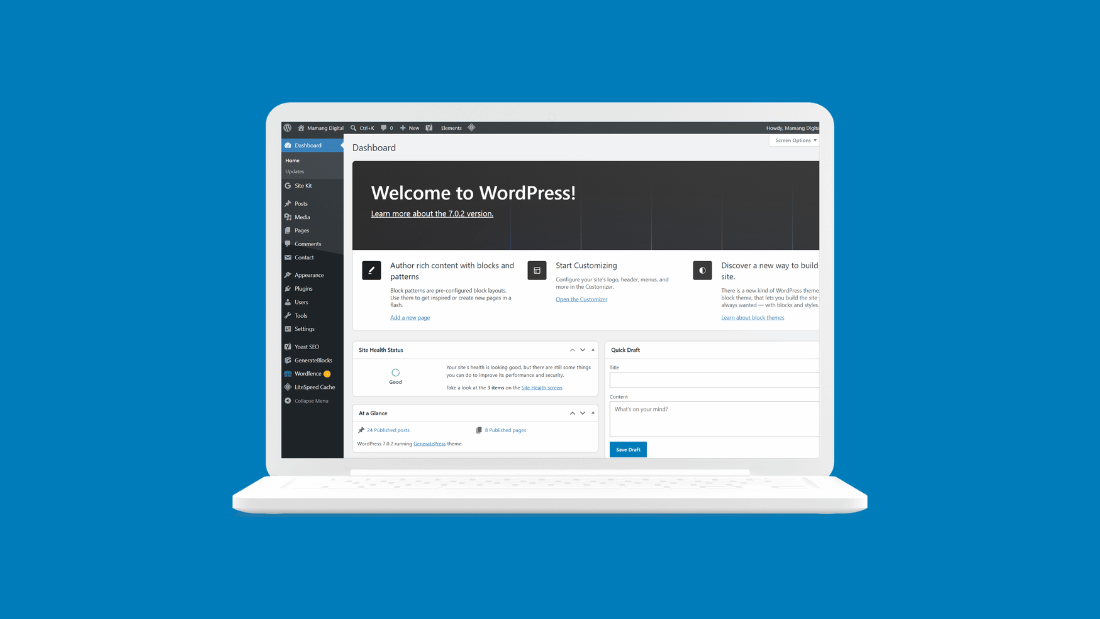
You log into WordPress for the first time and there it is: a dark sidebar full of menu items, boxes scattered across the screen, and words like widgets, permalinks, and taxonomies that mean nothing yet. The excitement of building a site turns into quiet panic within about thirty seconds. Every WordPress user has had this exact moment.
Here is what most dashboard guides get wrong: they walk you through every single menu item in exhaustive detail, which makes the overwhelm worse, not better. This guide does the opposite. It maps out which parts of the dashboard you will genuinely use, which ones you can safely ignore for months, and where the confusing bits live. Think of it as a map, not a manual.
The Three Areas of the Screen
Before any specific menu, understand the layout, because everything else makes more sense once you see the structure. Your dashboard has three distinct areas, and you reach it by going to yourdomain.com/wp-admin, which is worth bookmarking since you will visit it constantly.
The left sidebar is your main navigation and stays visible everywhere in the dashboard. This is where almost everything starts. The top bar is a thin black strip offering shortcuts, most usefully a “New” button for quickly creating a post or page, and it also appears when you are viewing your live site while logged in, letting you jump straight into editing whatever you are looking at. The main area in the middle changes depending on what you clicked, and on the home screen it shows summary boxes about your site.
One reassurance before we go further: your dashboard may look slightly different from screenshots you see elsewhere, because plugins add their own menu items and themes adjust some options. That is normal and not a sign anything is wrong.
The Menus You Will Actually Use Every Week
Of everything in that sidebar, four items will account for the vast majority of your time. Learn these and you can run a blog comfortably.
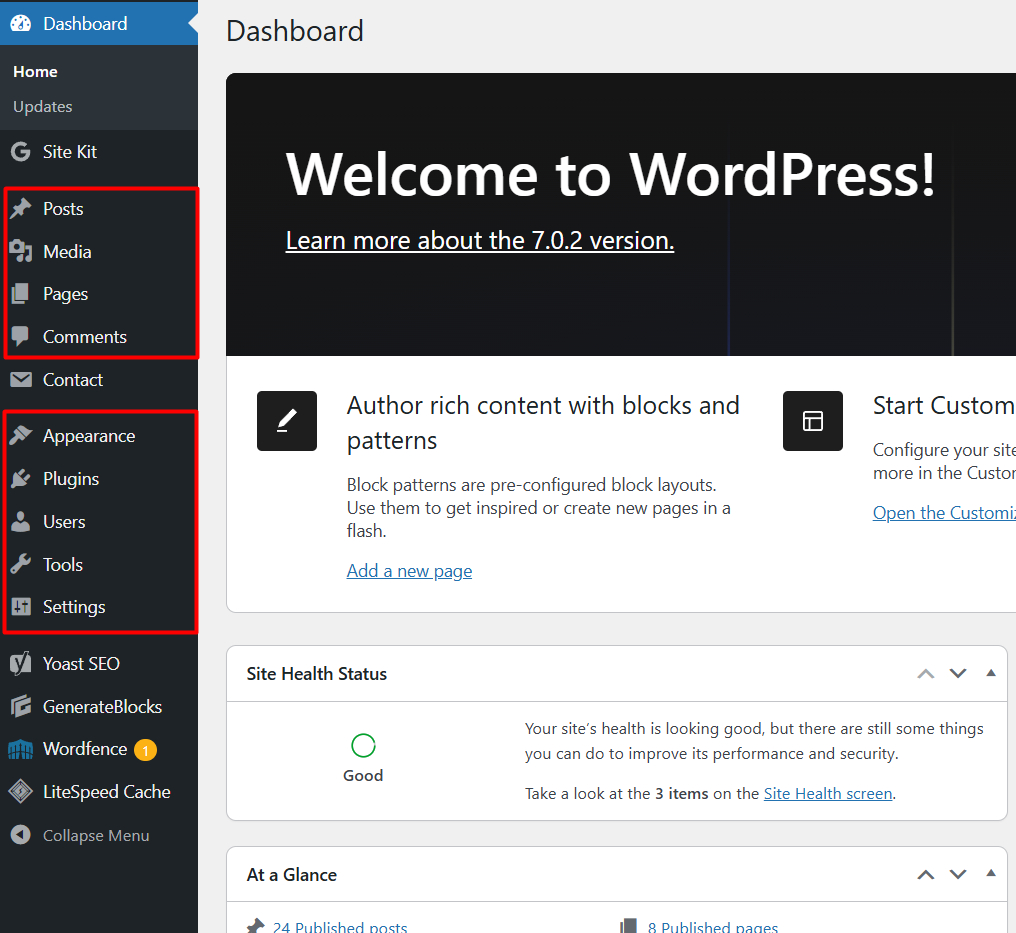
Posts is where your blog articles live, both writing new ones and editing existing ones. If you blog, this is your home base. Media holds every image and file you upload, and you will visit it whenever you need to find, reuse, or tidy up images. Pages is where your permanent pages live, things like About, Contact, and Privacy Policy, as opposed to dated blog articles. Comments is where reader comments wait for your approval, and it is worth checking regularly, since spam comments arrive faster than most beginners expect.
That is genuinely it for daily work. Writing, images, pages, comments. Everything else in the sidebar is occasional setup, not routine use.
The Menus You Will Visit Occasionally
These next few matter, but you will touch them during setup and then rarely afterward, which is why they do not deserve the anxiety they often cause.
Appearance controls how your site looks: your theme, your menus, and design customization. We cover the theme side of this in our guide on choosing and installing a WordPress theme. Plugins is where you add and manage the features that extend your site, which we map out in our guide on essential WordPress plugins. Settings holds your site title, tagline, permalink structure, and other configuration you typically set once and forget. Users manages who can log in and what they can do, which matters little on a one-person blog but becomes important the moment you add a contributor.
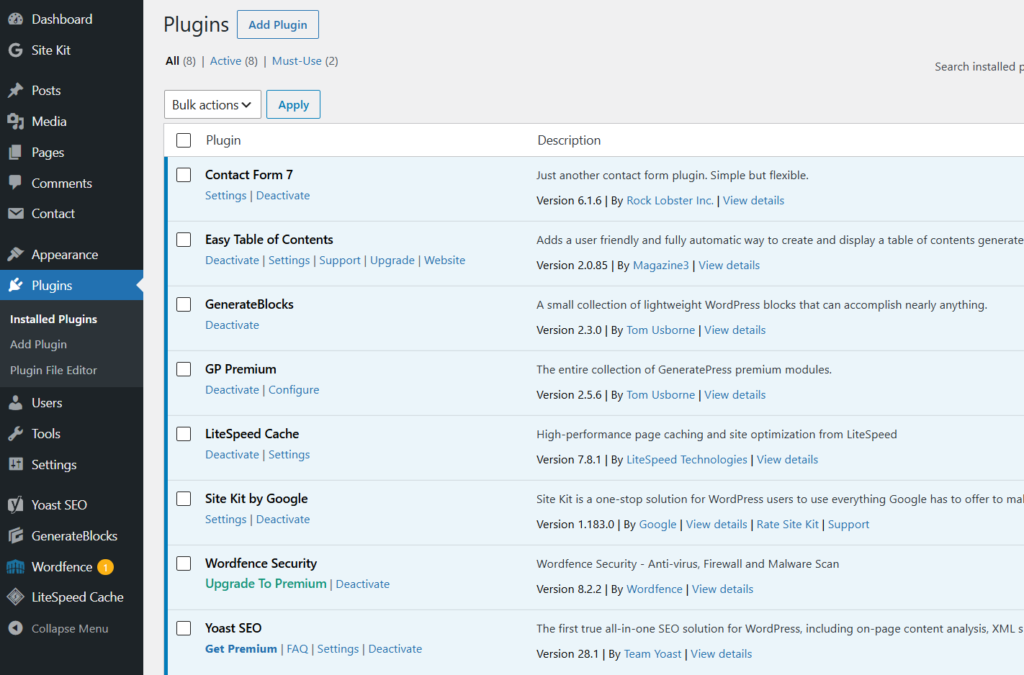
And Tools is one you can genuinely ignore for now. It holds import, export, and site health information, useful occasionally, but nothing a new blogger needs in their first months.
Why Your Appearance Menu Might Look Different
Here is a genuine source of confusion in 2026 that trips up beginners following older tutorials. Depending on your theme, your Appearance menu shows different options, and if a guide tells you to click something that is not there, this is usually why.
If you use a classic theme, you will see familiar items like Appearance, then Menus, and Appearance, then Customize, which is where you set colors, your logo, and navigation menus. If you use a block theme, including newer default themes, those items are replaced by a single Appearance, then Editor option, which opens a full visual site editor where headers, footers, and navigation are edited directly on the page instead of through separate menu screens.
Neither approach is wrong, they are simply two different systems, and knowing which one your theme uses saves you from hunting for a menu that does not exist on your setup. If you cannot find Menus under Appearance, you are almost certainly on a block theme, and the Editor is where you need to go.
Two Hidden Buttons Worth Knowing
In the top right corner of most dashboard screens sit two small tabs that even experienced users overlook, and both are genuinely useful.
Screen Options lets you hide or show elements on whatever screen you are viewing, including those summary boxes on the dashboard home. If your dashboard feels cluttered with things you do not care about, this is where you quietly turn them off, which is one of the fastest ways to make WordPress feel calmer. Help gives you documentation specific to the exact screen you are on, which is far more useful than searching the web when you are unsure what a particular setting does.
The One Setting Worth Fixing Immediately
Most settings can wait, but one deserves attention on day one because changing it later causes problems. Under Settings, then Permalinks, you choose how your web addresses are structured. The default on some setups produces ugly addresses full of numbers, while the Post name option produces clean, readable ones that both people and search engines prefer.
Set this before you publish much content. Changing your permalink structure after you have published and been indexed can break existing links, which is a headache you can entirely avoid by getting it right early. It takes one click, and it is the single most valuable thirty seconds you can spend in Settings.
Learning It Without the Overwhelm
The honest advice for anyone staring at this interface for the first time: do not try to understand everything at once. You do not need to. Learn Posts, Media, Pages, and Comments properly, fix your permalinks, and leave the rest until a specific need brings you there.
WordPress becomes familiar through use, not study. After a few weeks of actually writing and publishing, the sidebar stops looking like a wall of options and starts feeling like a workspace you know your way around. Every experienced user got there the same way, by using the parts they needed and ignoring the rest until it mattered. Start writing, and let the dashboard become familiar in the background.
Frequently Asked Questions
How do I access my WordPress dashboard?
Go to yourdomain.com/wp-admin and log in with your username and password. Some hosts also offer a shortcut link from their own control panel. Bookmarking this address is worth doing immediately, since you will visit it almost every time you work on your site.
Why does my dashboard look different from tutorials I see online?
Plugins add their own menu items and themes change some options, so no two dashboards look identical. The biggest difference in 2026 is classic themes versus block themes, which show different options under Appearance. This is normal and not a sign anything is broken.
Where is the Menus option under Appearance?
If you cannot find it, you are likely using a block theme, which replaces the separate Menus screen with Appearance, then Editor. Navigation is edited directly within the site editor instead. Classic themes still show the traditional Menus option.
Which dashboard settings should I change first?
Permalinks, found under Settings. Choosing the Post name structure gives you clean, readable web addresses. Set it before publishing much content, since changing it later can break existing links that people and search engines already know about.
Do I need to understand every menu in the dashboard?
No. Four menus cover most daily work: Posts, Media, Pages, and Comments. Appearance, Plugins, and Settings matter during setup, and Tools can be ignored for months. Learning the rest as specific needs arise is far more effective than trying to memorize everything upfront.