
Adding someone to Google Search Console takes about thirty seconds. Choosing the right permission level for them takes slightly more thought, and getting it wrong is how people accidentally hand a freelancer the ability to remove them from their own property.
This walks through the actual clicks, then explains which of the four access levels to give and why. It also covers the parts most guides skip: the quota limits, why an email group will not work, and what happens to everyone’s access if the wrong person leaves.
Before You Start
Two conditions have to be true, and both are easy to check.
You need to be an owner of the property. Google’s documentation is specific: you must be a property owner, or an owner of a parent property, to add or remove another user. If you were added as a Full user yourself, you cannot add anyone.
There is a quick way to confirm this. The ‘Users and permissions’ page only appears in settings if you are an owner. If you cannot find it, that is your answer.
The person you are adding needs a Google Account. Not a Gmail address, a Google Account. This distinction matters and a surprising number of guides get it wrong by telling you the email has to end in gmail.com. It does not. A work address on a company domain works perfectly, as long as that address has been registered as a Google Account.
If you are unsure whether their address qualifies, ask them to try signing in at accounts.google.com with it. If they can, you are fine.
How to Add a User to Google Search Console
Four clicks and an email address.
Open the correct property
Sign in to Search Console and select the property you want to share from the dropdown at the top left.
Check this twice if you manage several sites. Permissions are granted per property, and adding someone to the wrong one is a mistake you will not notice until they tell you they cannot see anything.
Go to Users and permissions
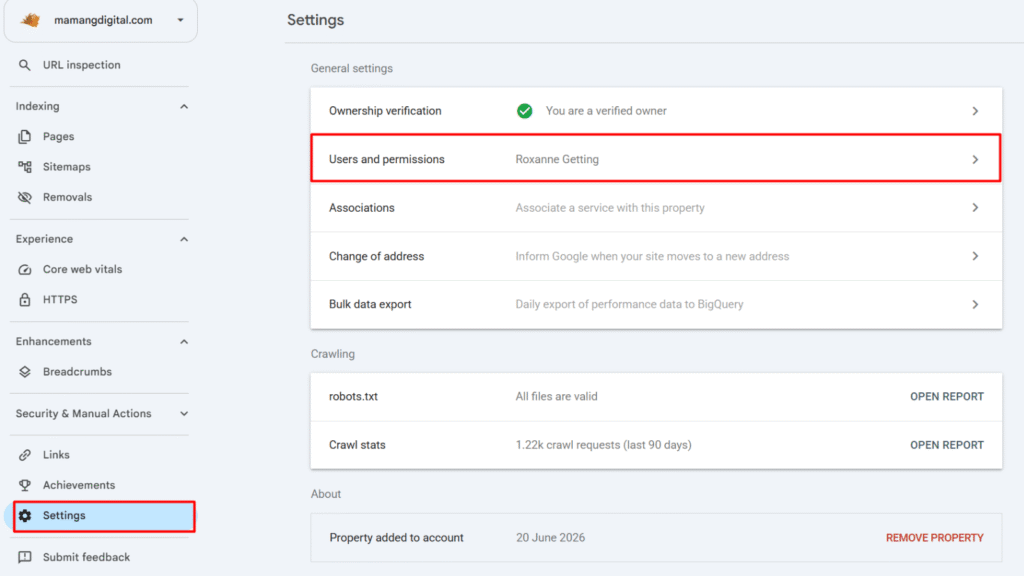
Click Settings in the left sidebar, then Users and permissions. You will see everyone who currently has access, along with their permission level and, for owners, their verification method.
Worth reading that list before you add anyone. Old agencies and former employees have a habit of still being on it.
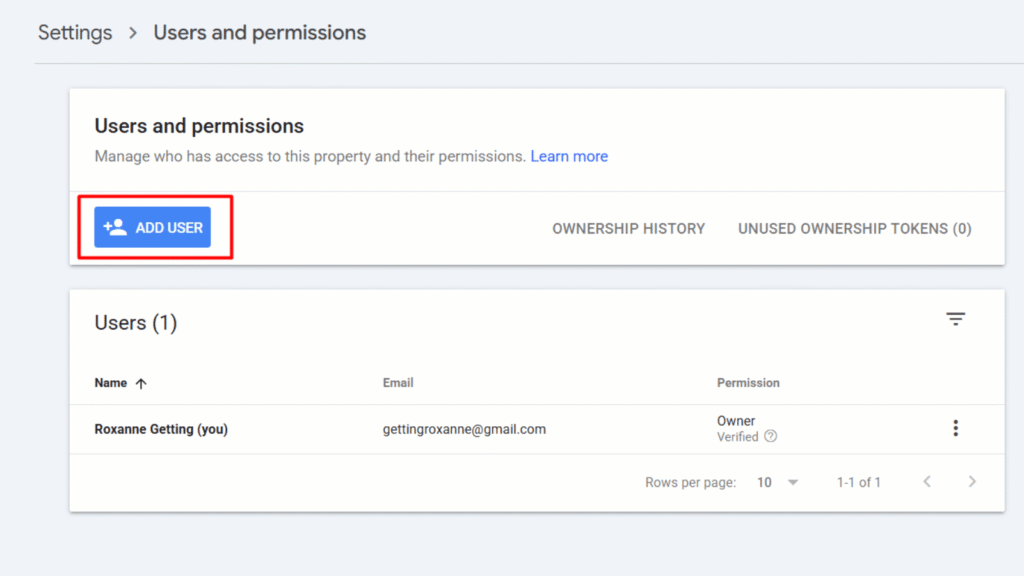
Click Add user
The button sits at the top right of the page. It opens a small dialog with two fields: the email address and the permission level.
Enter the email and pick a permission level
Type their address, choose ‘Full’ or ‘Restricted’ from the dropdown, and click Add. They appear in the user list immediately.
The next section covers which of those two to choose. If you are in a hurry: pick Restricted.
Tell them it is done
Access is granted the moment you click Add, but the notification is easy to miss. Send them a message telling them to sign in at search.google.com with that specific account, because if they have several Google accounts they will look in the wrong one and report that it did not work.
Which Permission Level to Choose
This is the part that actually matters. Search Console has four access levels, and only two of them appear in the Add user dropdown.
Restricted user
Simple view rights on most data. They can look at performance reports and coverage information. They cannot change settings, submit anything, or affect your property in any way.
This should be your default. Most people who ask for Search Console access want to read numbers, and read-only is exactly the right amount of power for that. Give someone Restricted first and upgrade them if they hit a wall.
Give it to: clients, stakeholders, writers, anyone who reports on traffic but does not act on it.
Full user
View rights to all data, plus the ability to take some actions. That includes using URL Inspection to request indexing, marking issues as fixed, and submitting disavow files.
What a Full user cannot do is manage other users. That boundary is the reason this level exists, and it is usually the right level for anyone doing real SEO work on your site.
Be aware that disavow file access is genuinely consequential. A badly built disavow file can suppress links you wanted counted, and nothing in the interface will warn you.
Give it to: your SEO consultant or agency, an in-house specialist, a developer fixing indexing problems.
Owner
Full control. Owners see all data, use every tool, change every setting, and add or remove other users including other owners.
Notice what that last part means. An owner you add can remove you. Grant this to people you would trust with the login itself, and to nobody else.
Owner is not in the Add user dropdown as a plain option, because there are two kinds and they behave differently. The next section explains that.
Give it to: business partners, senior internal staff, and nobody outside your organization without a specific reason.
Associate
The odd one out, and the reason people get confused when they see it in their user list.
Associates cannot open or view your Search Console account or data at all. They are authorized to perform certain other tasks on behalf of your site, and what those tasks are depends on the type of association, such as a Chrome Web Store listing. Associates are added through a different process, not through the Add user button.
If you see one you did not create, investigate it rather than ignoring it.
| Level | View data | Take actions | Manage users | Change settings |
|---|---|---|---|---|
| Owner | All | Yes | Yes | Yes |
| Full user | All | Some | No | No |
| Restricted user | Most | No | No | No |
| Associate | None | Specific tasks only | No | No |
Verified Owner vs Delegated Owner
Both show up as ‘Owner’ in your user list, which is why this catches people out. The difference only becomes visible when something goes wrong.
A verified owner proved ownership
They completed a verification method: an HTML file upload, a meta tag, a DNS record, a Google Analytics or Tag Manager connection. Google can also determine ownership automatically in some cases, such as a Blogger account tied to the same Google account.
In the user list, a verified owner shows a verification method next to their name. Every property needs at least one, and without one nobody has access at all.
A delegated owner was granted ownership
An existing owner gave them owner rights, but they never verified anything themselves. In the user list they appear as an owner with no verification method shown, which is the only way to tell them apart at a glance.
Delegated owners can add users and even other delegated owners. Some guides claim only verified owners can add people, which contradicts Google’s own documentation on this point.
The cascade nobody warns you about
This is the important part. A delegated owner’s access depends entirely on the verified owner who granted it. If that verified owner becomes unverified, every delegated owner they created loses access too.
Consider how that plays out. An agency verifies your property using their own Google Tag Manager container, then delegates ownership to you. You are now an owner, but your access rests on their verification. The contract ends, they remove the container, and your access disappears along with theirs.
The fix takes two minutes. Verify ownership yourself, with your own method, ideally a DNS record you control. Then you are a verified owner and nobody else’s departure can affect you. Do this before you need it.
One related detail if you use Site Kit by Google: whichever admin runs the setup wizard is granted Owner permissions in Search Console using their personal Google account. Worth knowing who that was on a site you inherited.
Changing or Removing Access
Both happen on the same ‘Users and permissions’ page.
To change a permission level
Use the dropdown in the Permission column next to their name and select the new level. It applies immediately with no confirmation step, so click carefully.
To remove a user
Open the three-dot menu at the end of their row and choose to remove access. They lose it instantly.
To remove a verified owner properly
Removing them from the user list is not enough. A verified owner holds a verification token somewhere on your site, and while that token exists they can re-verify themselves.
To fully revoke access you have to unverify them by deleting their token: remove the HTML tag from your theme, delete the verification file, drop the DNS record, or revoke the Analytics or Tag Manager access they verified through. Google covers this under taking over a site from a previous owner.
This is the step people miss when they part ways with an agency, and it is the one that actually matters.
The Limits You Will Eventually Hit
Rarely mentioned anywhere, and they exist.
A property can have a maximum of 100 non-owners, counting Full users, Restricted users, and Associates together. Delegated owners can be added until the property reaches 500 combined verified and delegated owners. Verified owners have no maximum at all, so even a property that already holds 500 owners can still take additional verified ones.
The arithmetic matters if you are near the edge. A property with 200 verified owners and 300 delegated owners has used its 500 slots, so no new delegated owner can be added until someone is removed.
Most sites will never come close. Agencies and large organizations do.
When It Does Not Work
Five things go wrong, and four of them are quick.
There is no Users and permissions option
That page is visible only to owners. You are a Full or Restricted user on this property. Ask an owner to either add the person for you or promote you.
The email address is rejected
The address is not registered as a Google Account. Have them create one using that address, or supply a different address that already is one. Again, it does not need to be a Gmail address.
Your team’s group address will not work
Google states this directly: an email group cannot be added as a user. Adding seo@yourcompany.com as a distribution list will fail. Add each person’s individual account instead.
Annoying for teams, and there is no workaround inside Search Console.
They say they still cannot see the property
Almost always the multiple-accounts problem. They are signed into a different Google account than the one you added. Have them check the account avatar at the top right, or open Search Console in a private window and sign in deliberately.
Your only verified owner is gone
The serious one. If the only verified owner of a property leaves, access for everyone who depended on that verification is at risk.
The answer is to verify ownership yourself, which you can do independently of anyone else’s status as long as you control the site or its DNS. If you have lost access entirely, adding the property again and verifying it fresh gets you back in.
Then stop having one verified owner. Two is the minimum for any property you rely on.
Frequently Asked Questions
Does the person need a Gmail address?
No. They need a valid Google Account, which any email address can be registered as. A company address on your own domain works fine.
Can a Full user add other users?
No. Only owners can manage users, and that boundary is the main practical difference between a Full user and an owner.
What permission should I give my SEO agency?
Full user covers everything an agency needs for real work, including indexing requests and disavow files, without letting them manage access. Give Owner only if there is a specific reason, and remember an owner can remove you.
Will they see my Google Analytics data too?
No. Search Console and Analytics have completely separate permission systems. Adding someone to one does nothing in the other.
Do permissions apply to all my properties at once?
No. Permissions are per property, so you repeat the process for each one. The exception is that an owner of a parent property can manage users on properties beneath it.
How do I tell a verified owner from a delegated one?
Look for a verification method beside their name on the ‘Users and permissions’ page. Verified owners show one. Delegated owners show none.
Does removing a user delete their historical data?
No. Your property data belongs to the property, not to individual users. Removing someone only removes their ability to look at it.
Where is Google’s official documentation?
Google covers this under managing owners, users, and permissions in the Search Console help center, which is the authority if anything here ever conflicts with what you see on screen.
Two habits will save you every problem in this article. Default to Restricted and upgrade only when someone asks. And make sure at least two people you actually trust are verified owners, verified through methods you control, before you need that to be true.