Search this topic and nearly every guide sends you to Appearance » Customize » Site Identity. That worked for years. On a lot of WordPress installs today it leads nowhere, because if you’re running a block theme there’s no Customizer to open.
Since WordPress 6.5 the setting lives somewhere simpler and works on every theme. There’s also a rule about favicon sizes that half the internet still repeats and Google removed from its documentation in October 2024.
Two minutes for the setting itself. The rest of this covers why your icon shows in the browser tab but not in Google, which is the part people actually get stuck on.
Preparing the Image
Do this before you touch WordPress, because a bad source file is most of the reason favicons look terrible.
Make it square and at least 512 by 512 pixels. That’s WordPress’s own requirement, not Google’s, and it exists because WordPress generates several smaller versions from what you upload. Give it something big and sharp and let it scale down.
PNG, with a transparent background. JPG works but you’ll get a white box around your icon on dark browser tabs. Transparency solves that for free.
Design it for 16 pixels, not for 512. This is the part people get wrong. Your icon will spend most of its life rendered at roughly the size of a full stop. A detailed logo with a tagline turns into a grey smudge. What survives at that size is one letter, one simple shape, or a single strong mark, in high contrast.
The honest test: shrink your design to 16 by 16 in any image editor and look at it. If you can’t tell what it is, neither can anyone else, and no amount of resolution fixes that.
Think about dark mode. A dark navy icon on a dark browser tab disappears. A white icon vanishes on a light one. Something with a contrasting outline, or a solid coloured background shape, survives both.
Setting It in Settings, Not the Customizer
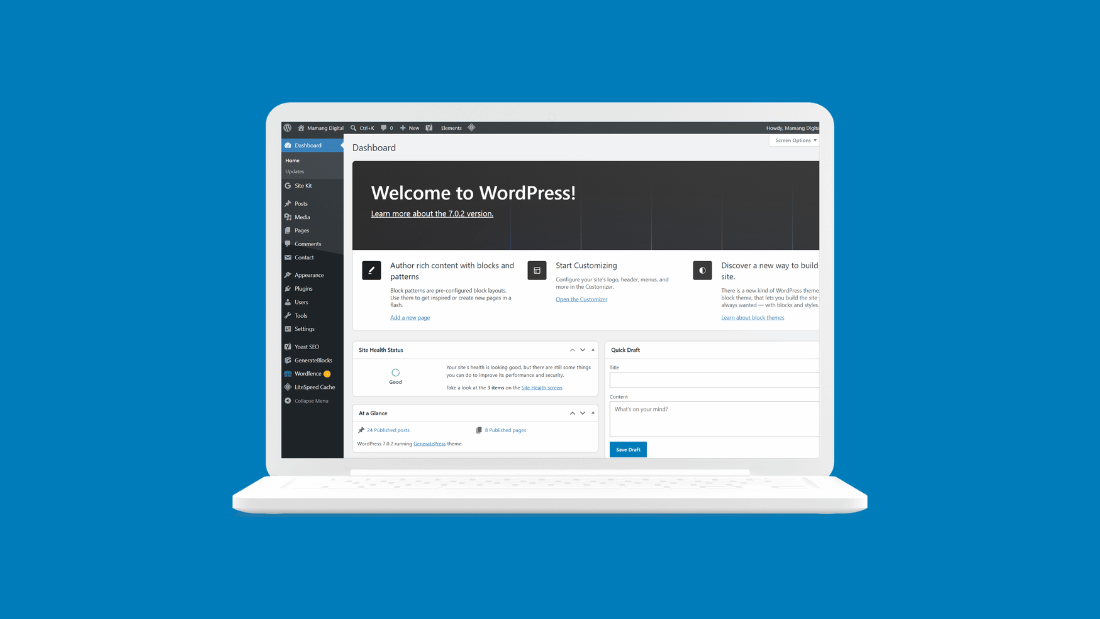
Go to Settings » General and scroll to the bottom. There’s a Site Icon section.
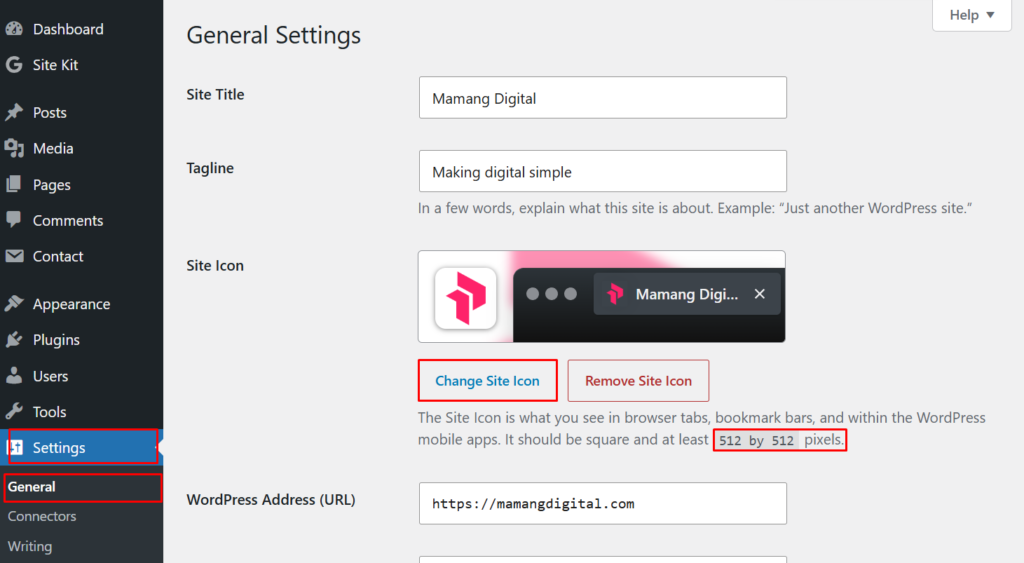
Click Choose a Site Icon, upload your file or pick it from the media library, crop if WordPress asks, then Save Changes at the bottom of the page.
That’s the whole thing. This location arrived in WordPress 6.5 in April 2024, and it’s the one to use because it works identically whether your theme is classic or block-based. It also means you never have to work out which kind you have.
Don’t skip the Save Changes button. The icon uploads and previews immediately, which makes it feel done, and then nothing has actually been saved.
If Your Theme Is Older
On an install running something before 6.5, or on a classic theme where you’d rather stay in familiar territory, the old route still works: Appearance » Customize » Site Identity » Site Icon, then Publish.
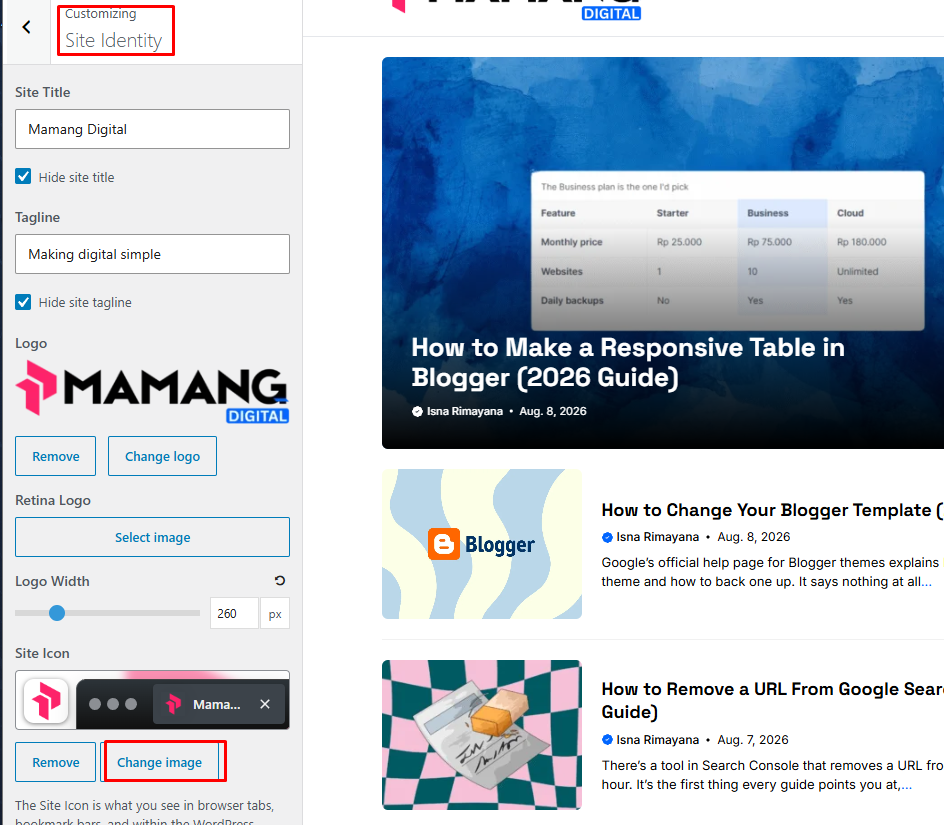
Both places write to the same setting, so it doesn’t matter which you use. If you set it in one and then look in the other, you’ll see it already there.
If Appearance » Customize isn’t in your menu at all, you’re on a block theme and the Customizer has been removed. Use Settings. Some block themes offer a Site Logo block with a “use as site icon” toggle, but that ties your favicon to your header logo, and a header logo is almost never a good favicon. We went through what the Customizer does and doesn’t handle these days in customising WordPress without code.
You do not need a plugin for any of this. Several guides recommend one. WordPress has handled site icons in core since version 4.3, and a plugin adds a thing to update and a thing to break in exchange for a setting you already have.
What WordPress Actually Does With It
Worth knowing, because it explains most of the troubleshooting later.
From your one upload, WordPress generates several sizes and writes them into the head of every page:
| Size | Used for |
|---|---|
| 32 x 32 | Browser tabs and bookmarks |
| 180 x 180 | Apple touch icon, iOS home screen |
| 192 x 192 | Android home screen and app shortcuts |
| 270 x 270 | Windows tile |
You can see them yourself. Open your site, right-click, choose View page source, and search for rel="icon".
If those tags aren’t there, the setting didn’t save and nothing else in this article will help until it does.
One thing WordPress doesn’t create is a classic favicon.ico file sitting in your root folder. It doesn’t need to. Modern WordPress answers requests for that address by serving your site icon, and browsers follow the link tags anyway. If an old tutorial tells you to upload a .ico via FTP, that advice predates this feature by about a decade.
The 48 Pixel Rule That Isn’t One
Here’s the claim you’ll find everywhere, including in articles published this year: your favicon must be a multiple of 48 pixels square. 48, 96, 144, 192. Anything else and Google ignores it.
Google removed that from its documentation in October 2024. The current wording is different in a way that matters: the favicon must be square, at least 8 by 8 pixels, and Google recommends larger than 48 by 48 so it looks good across different surfaces.
So the requirements are:
| Rule | Status |
|---|---|
| Square, 1:1 aspect ratio | Required |
| At least 8 x 8 pixels | Required |
| Larger than 48 x 48 | Recommended |
| An exact multiple of 48 | Not a rule |
| Crawlable, not blocked in robots.txt | Required |
| Stable URL that doesn’t keep changing | Required |
The practical upshot for WordPress users is that you don’t have to do anything. Upload 512 by 512, WordPress produces a 192 and a 32, both square, and the 192 comfortably clears what Google asks for.
The one requirement worth checking is crawlability. If something in your robots.txt blocks your uploads folder, Google can’t fetch the file and won’t show it, no matter how perfect the image is. That distinction between blocking and hiding is the same one we unpicked in robots.txt explained.
Google also won’t display icons it considers inappropriate, and replaces them with a default globe. Unlikely to affect you, but it’s in the documentation.
Why It Shows in Your Tab But Not in Google
This is the complaint, and none of the guides on this topic explain it.
Your browser and Google are two completely separate systems here. The browser reads the link tag on the page it just loaded and shows the icon within seconds. Google keeps its own favicon cache, refreshes it on its own schedule, and does not update it every time it crawls your content.
Three consequences to plan around.
It takes days to weeks. On a new site with little crawl activity it can be longer. Setting the icon and checking Google an hour later tells you nothing.
Google reads it from your home page. Not from the article someone happens to be looking at. If your home page is blocked, broken, or hasn’t been crawled recently, the favicon doesn’t update.
One icon per hostname. Every page on yoursite.com shares the same one, including everything under /blog/. A subdomain like shop.yoursite.com is treated as a separate site and can have its own.
You can nudge it. Open URL Inspection in Search Console, enter your home page address, and request indexing.
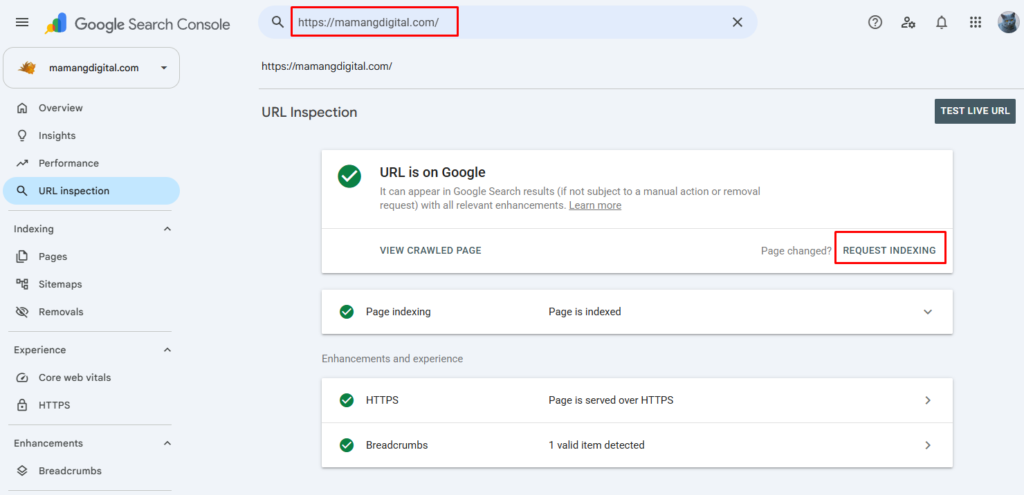
That asks Google to look again. It doesn’t put you at the front of any queue, and it certainly doesn’t guarantee the favicon updates on a schedule you’d like. The same limits apply as for anything else you want recrawled, which we went through in getting new posts indexed faster.
Then wait. This is genuinely a wait-and-see situation and there’s no lever that changes that.
Checking It Properly
Favicons are cached more stubbornly than almost anything else on the web, so a normal refresh proves nothing.
Open a private window. Fastest reliable check, and the one to do first.
Check the page source for the icon link tags. If they’re there, WordPress has done its job and anything you’re seeing is a caching problem, not a settings problem.
Load the image URL directly. Copy the address out of the link tag and paste it into your browser. The icon should appear on its own. If you get a 404, the file was deleted from the media library after being set.
Try another device. Your phone has never cached your old icon, so it shows you the truth immediately.
Look at it small. Not zoomed in on your monitor. At actual tab size, on a phone, at arm’s length. That’s the only view that counts.
When It Won’t Show Up
Old icon still there. Browser cache, nine times out of ten. Private window first. If that’s clean, it’s your visitors’ caches you’re seeing, and those clear on their own.
A caching plugin or CDN is serving stale pages. Purge both. On a site running LiteSpeed Cache, Cloudflare, or similar, the new link tags may be sitting behind a cached copy of your HTML.
No Site Icon option anywhere. Your WordPress is old. Update it, and check Settings » General first since that location is the most reliable.
The icon looks blurry. Your source was smaller than 512 by 512 and got scaled up. Remove it, prepare a proper file, upload again. Enlarging a small image never adds detail back.
It’s squashed or cropped oddly. Your source wasn’t square. WordPress crops to a square and something had to go. Fix the file rather than fighting the crop tool.
A different icon appears, one you didn’t choose. Some themes and SEO plugins add their own favicon tags. Check the page source for more than one rel="icon" line, then find whichever theme option or plugin setting is adding the extra one.
Google still shows a grey globe after several weeks. Confirm the image URL loads on its own, confirm your home page isn’t blocked, confirm the icon is square, then request indexing on the home page again. If everything checks out, it’s a waiting problem rather than a fixing problem.
The Short Version
Make a square PNG, at least 512 by 512, designed to survive being 16 pixels wide. Go to Settings » General, set it as your Site Icon, save. Check in a private window.
Ignore any guide insisting on multiples of 48. Google dropped that in October 2024 and now asks only that the icon is square, is bigger than 48 by 48, and can be crawled.
Then be patient about search results. The tab updates in seconds, Google takes days or weeks, and confusing the two is the reason most people think this didn’t work.