You set up Google Search Console, you waited, and now you have finally logged in to see how your site is doing. Then you froze. Charts, tabs, numbers, words like impressions and coverage, all staring back at you with no obvious place to start.
This is where most beginners quietly close the tab. Search Console is genuinely useful, but it shows you everything at once, and almost no guide tells you what to ignore. That is the real problem, not that the data is hard, but that nobody points you to the few things that actually matter when you are starting out.
So that is what this guide does. Instead of explaining every report, we will focus on the handful you should actually read, in the order that makes sense, and tell you plainly which ones to skip for now. By the end, that scary dashboard will feel like a simple checkup you can do in a few minutes.
If you have not set up Search Console yet, do that first. We walk through the whole process in our guide on how to add your website to Google Search Console, and the rest of this only makes sense once your site is verified.
Start With Just One Report: Performance
Forget the rest of the menu for a moment. The one report that answers the question you actually care about, are people finding me on Google, is the Performance report. It is where you should spend almost all of your time as a beginner.
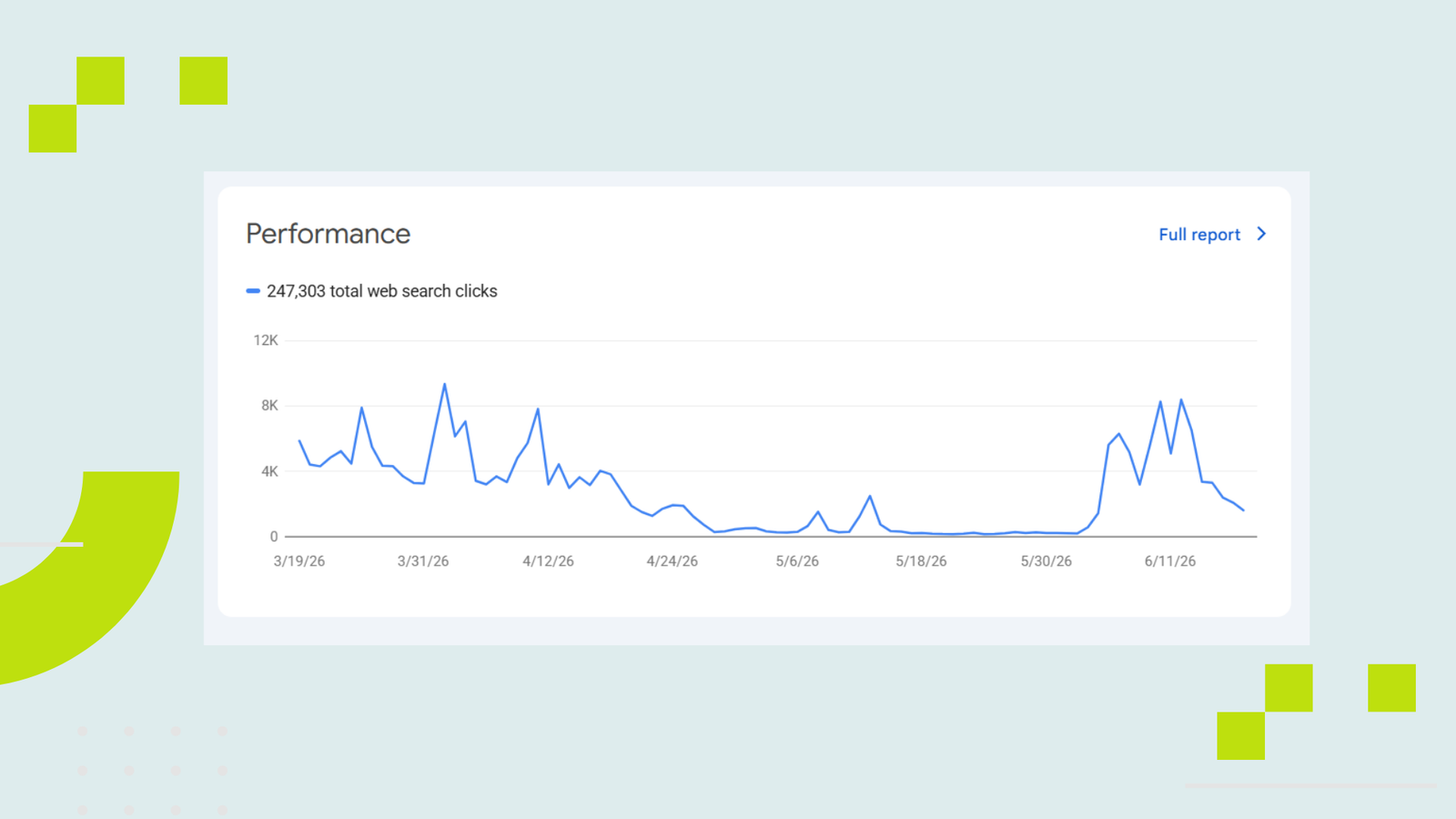
To open it, look at the left sidebar and click Performance, then Search results. You will land on a chart with some numbers across the top, and a table underneath. That is the whole report, and once you understand those two parts, you understand most of what Search Console is for.
The chart at the top shows your trends over time. The table at the bottom breaks that down into detail, by search query, by page, by country, and by device. The chart tells you whether things are going up or down. The table tells you why. Keep that simple split in mind and the report stops being intimidating.
The Four Numbers, Explained in Plain Language
Above the chart sit four numbers, and every other guide lists them without really explaining what they mean for you. Let us fix that, because understanding these four is honestly ninety percent of reading Search Console well.
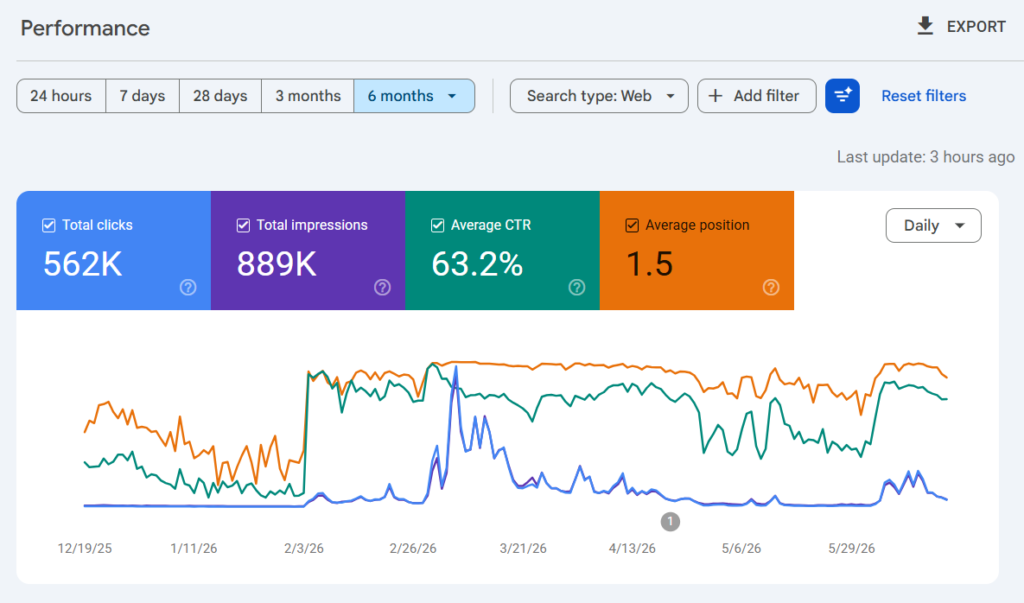
Impressions are how many times your site showed up in someone’s search results, whether they clicked or not. Think of it as how often you appeared on the shelf. A rising impressions number means Google is showing your pages to more people, which is the first sign of progress for a new site.
Clicks are how many times someone actually clicked through to your site from those results. This is the one that becomes real traffic. If impressions are appearing on the shelf, clicks are someone actually picking you up.
Average CTR, or click-through rate, is simply the percentage of impressions that turned into clicks. If you appeared 100 times and were clicked 5 times, your CTR is 5 percent. It tells you how tempting your result looks when people see it.
Average position is roughly where you sit in the search results, on average, for the terms you appear for. Position 1 is the top. Position 25 means you are typically on page three, where few people look. Lower numbers are better, and this is the one that takes the longest to improve.
One important note. By default Search Console may only show clicks and impressions on the chart. To see all four, click each metric box above the chart to toggle it on. Turning on average position especially is worth doing, because it reveals a lot about where you really stand.
If Your Reports Look Empty, You Are Not Broken
Here is the reassurance no guide bothers to give, and the thing that worries new owners the most. If you open Performance and see flat lines, tiny numbers, or almost nothing at all, your site is not broken. It is just new.
Search Console only shows data from the day you verified your site forward. It does not backfill history. So a site that was verified last week simply has very little to show yet. On top of that, a brand new site has not climbed high enough in results to gather many impressions, so low numbers early on are completely expected.
What you want to watch for is not a big number today, but a slow upward drift over the coming weeks. The first time you see impressions start to rise, that is Google beginning to show your pages to people. That early trend matters far more than the raw total. If you are still not appearing at all after a few weeks, that is a separate issue, and our guide on why your website is not showing up on Google walks through the causes.
The Most Useful Trick for Beginners: Find Your Quick Wins
This single technique is the reason the Performance report is worth learning, and most beginner guides never mention it. Once you have a little data, Search Console can show you exactly where a small effort would pay off the most.
Here is the idea. Look in the table below the chart, on the Queries tab, with both impressions and CTR turned on. You are hunting for pages that get lots of impressions but very few clicks. That pattern means people are seeing you in search, but not choosing you. The good news is that this is usually the easiest thing in all of SEO to fix.
When a result gets seen but not clicked, the problem is almost always how it looks in the search listing, your title and your description. Rewriting them to be clearer and more inviting can lift clicks without changing your ranking at all. You are not working harder to rank, you are just earning more of the clicks you already have access to.
There is a second quick win hiding in average position. Look for queries where you sit around position five to fifteen, the bottom of page one and top of page two. These are pages that are close to breaking through. A little work, like adding more depth to that page or mentioning the exact phrases people searched, can nudge them up to where the real traffic is. Going from position twelve to position six is far easier than starting from nothing.
The Pages Report: Is Google Keeping Your Pages?
After Performance, there is exactly one more report a beginner should check regularly. It lives under Indexing in the left sidebar, labeled Pages, and it answers a simple question: which of your pages has Google actually kept, and which has it left out?
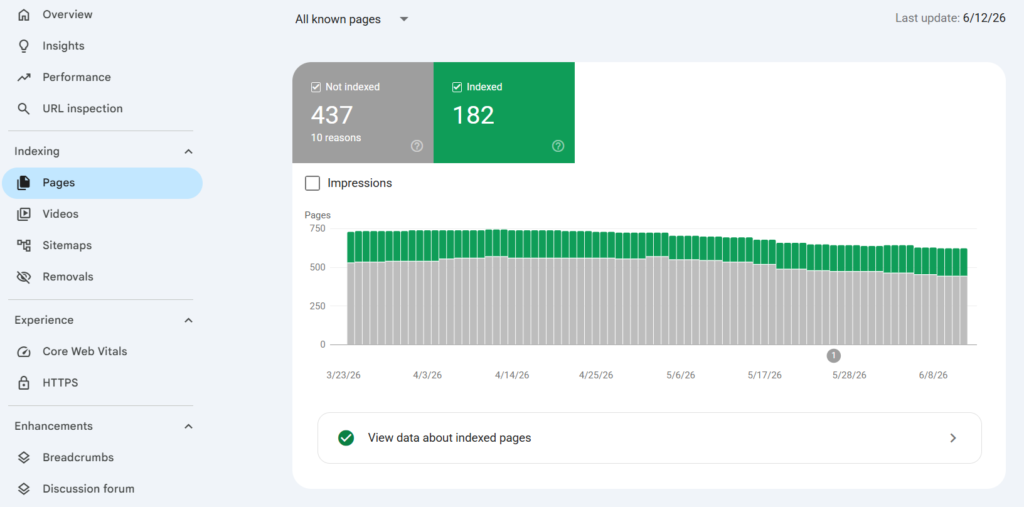
The report splits your pages into two groups, indexed and not indexed. Indexed pages are the ones that can show up in search. Not indexed pages are ones Google chose to skip, and it lists a reason for each. You want your important pages, your posts and key pages, sitting in the indexed group.
Do not panic if some pages are not indexed. This is normal and often correct. Google routinely skips things like tag pages, paginated archives, and duplicate or thin pages, and leaving those out is healthy. The reasons that should catch your eye are ones affecting pages you care about, with labels like “Discovered, currently not indexed” or “Crawled, currently not indexed” on a real article you published. Those usually mean Google found the page but has not prioritized it yet, which often improves as your site grows and the page earns a few internal links.
The fix is rarely dramatic. Make sure the page has genuine, useful content, link to it from other pages on your site, and give Google time. For an important page you want seen sooner, you can ask Google to take another look, which brings us to one handy tool.
URL Inspection: Checking a Single Page
At the very top of Search Console is a search bar, and that is the URL Inspection tool. It is the one feature beginners actually use beyond the two reports above, and it does something narrow but useful: it tells you the status of one specific page.
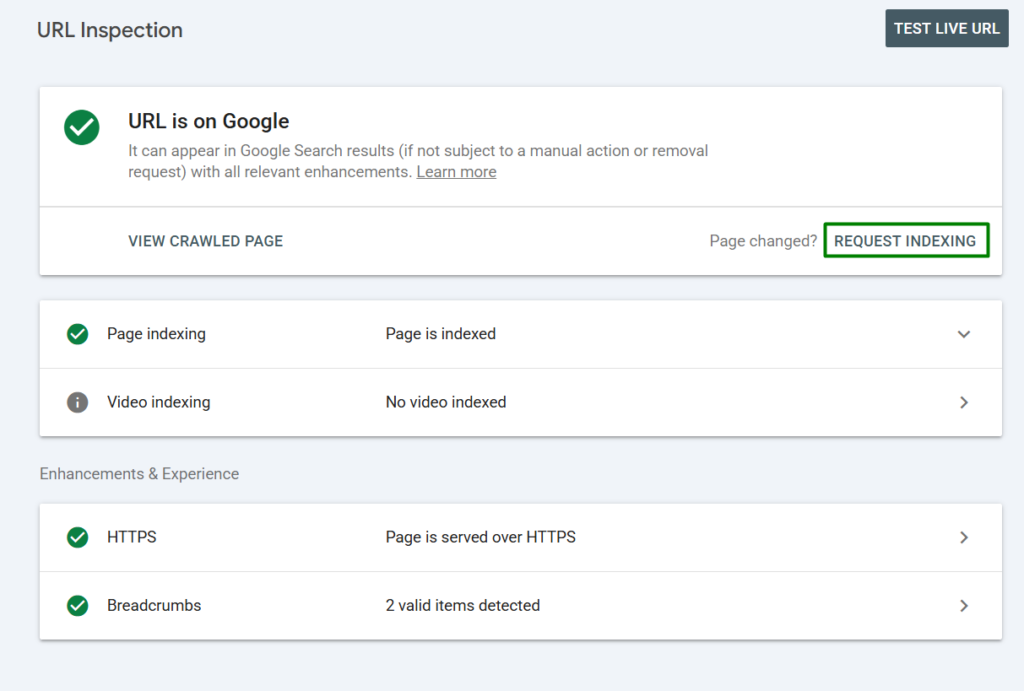
Paste any URL from your site into that top bar and press enter. Search Console tells you whether the page is on Google, and if not, why. The most useful button here is “Request Indexing”, which asks Google to come and look at a page sooner than it otherwise would. This is perfect for a post you just published and want crawled quickly.
One honest caution. Requesting indexing nudges Google, it does not force it, and hammering the button repeatedly does nothing extra. Request once, then let it work. It usually takes anywhere from a few hours to a few days.
Which Reports to Ignore for Now
This is the part no other guide will tell you, because admitting some reports do not matter yet feels like leaving things out. But for a beginner, knowing what to skip is as valuable as knowing what to read. It is what keeps you from drowning.
For now, you can safely glance past these and come back later. The Links report shows who links to you, which barely matters until your site has grown. Core Web Vitals and page experience reports deal with speed and technical polish, worth caring about eventually, but not your first priority when you have little traffic. The various Enhancements reports only appear if they apply to you, and you can ignore them until they do.
There is one report worth knowing exists even if you never need it: Manual Actions, under Security and Manual Actions. It is the only place Google tells you directly if your site broke its rules and got penalized. For an honest site you built yourself, it will almost always say “No issues detected”, and that is exactly what you want to see. Check it once, breathe easy, and move on.
You will also see a Sitemaps report under Indexing. If you have already submitted your sitemap, there is nothing more to read here day to day. If you have not, our guide on how to create and submit an XML sitemap covers it fully.
A Simple Routine to Actually Use This
Knowing what the reports mean is one thing. Building a small habit so you actually benefit from them is what separates people who grow from people who log in once and never return. Here is a routine that takes only a few minutes.
- Once a week, not once a day, open the Performance report and look at whether impressions and clicks are trending up over the last month. Daily checking just shows noise.
- Scan the Queries table for any page with high impressions but low clicks, and improve its title and description.
- Note any query sitting at position five to fifteen, and consider strengthening that page to push it onto page one.
- Once a month, open the Pages report to confirm your important pages are indexed, and look into any that are not.
- When you publish something new and important, use URL Inspection to request indexing once.
That is the entire routine. Notice what is not on it: most of the dashboard. Reading Search Console well as a beginner is not about understanding every report, it is about checking the few that matter and ignoring the rest until you need them. Do that, watch your trends climb, and the dashboard that scared you becomes the thing that tells you your work is paying off. When you are ready to go deeper, Google’s own Performance report documentation explains every detail in full.
Frequently Asked Questions
What is the difference between impressions and clicks?
An impression is counted every time your site appears in someone’s search results, whether they click or not. A click is counted only when someone actually visits your site from those results. Impressions show how often you are seen, clicks show how often you are chosen.
Why does my Search Console show no data or very little?
Usually because your site is new. Search Console only collects data from the day you verified your site onward, and a new site has not yet appeared in search often enough to gather much. Low numbers early on are normal. Watch for a slow upward trend over the following weeks instead.
What is a good average position in Search Console?
Lower is better, since position one is the top of results. Anything on page one, roughly positions one to ten, is strong. Positions five to fifteen are worth targeting, because those pages are close to breaking onto page one with a little improvement. A new site often starts much lower, and that is expected.
How often should I check Google Search Console?
Once a week is plenty for the Performance report, and once a month for the Pages report. Checking daily mostly shows random noise that can make you worry over nothing. Trends over weeks tell you far more than any single day.
I have high impressions but almost no clicks. What does that mean?
It means people are seeing your site in search but not clicking it, which usually points to an unappealing title or description rather than a ranking problem. Rewriting your page title and meta description to be clearer and more inviting can increase clicks without any change in position.