
Someone told you to “check your robots.txt,” or you stumbled across the word in an SEO article, and now you are worried there is yet another technical thing you were supposed to set up. You open your site’s robots.txt, see a few cryptic lines, and have no idea if they are right or about to ruin everything.
Relax. For most beginners, robots.txt is something you need to understand, not something you need to touch. Your site almost certainly already has one that works fine. The real danger is not ignoring it, it is editing it carelessly, because one wrong line here can hide your entire website from Google.
This guide explains what robots.txt actually does, how to read yours, the one mistake that can break your site, and when, if ever, a beginner should change it. By the end you will know exactly where you stand, without needing to become a technical expert.
What robots.txt Actually Is
A robots.txt file is a plain text file that sits at the root of your site, reachable at yourdomain.com/robots.txt. Its job is simple: it gives search engine crawlers, like Googlebot, instructions about which parts of your site they are welcome to crawl and which they should skip.
Think of it as a polite note pinned to your front door for visiting robots. It says things like “feel free to look around here, but please skip that back room.” Good bots, like Google and Bing, read this note and respect it. That is the whole idea.
One word matters in that last sentence: polite. A robots.txt file is a request, not a wall. Well-behaved search engines follow it, but it has no power to force anything. Bad bots can simply ignore it. That detail matters later when we talk about what robots.txt can and cannot protect.
The Biggest Misunderstanding: Crawling Is Not Indexing
This is the single most misunderstood thing about robots.txt, and getting it wrong causes real problems, so it is worth slowing down here. People assume that blocking a page in robots.txt hides it from Google search results. It does not.
Here is the difference. Crawling is when Google visits and reads a page. Indexing is when Google stores that page so it can show up in search. Robots.txt only controls crawling. It tells Google not to visit a page, but it does not tell Google to keep that page out of search results.
That leads to a strange outcome people do not expect. If you block a page with robots.txt, but another website links to it, Google can still list that page in search results, just without being able to describe what is on it. So robots.txt is the wrong tool for hiding a page. If you truly want a page kept out of Google, you use a different tool called a noindex tag, which actually tells Google not to index it. Understanding this difference is the same reason a site can be found but not ranked, which we explain in our guide on why your website is not showing up on Google.
How to Read Your Own robots.txt
Let us look at yours right now. Open a browser and go to yourdomain.com/robots.txt. Whatever you see, the lines are built from just a few simple commands, and once you know them, the file stops being scary.
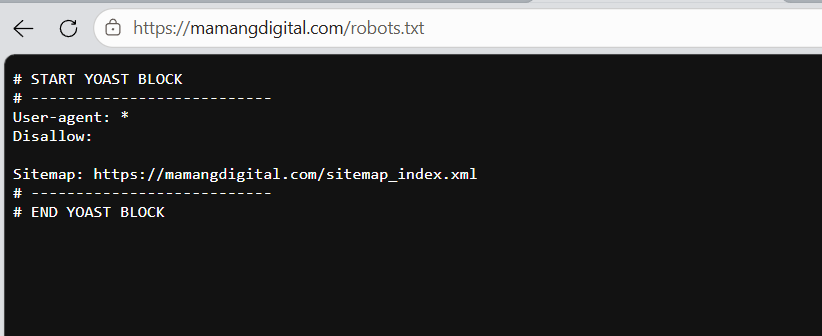
User-agent says which bot the rules apply to. The line User-agent: * uses an asterisk, which is a wildcard meaning “all bots.” So rules under it apply to every crawler.
Disallow tells the bot what not to crawl. This is the most important line to understand. Disallow: /wp-admin/ means “do not crawl the admin folder,” which is normal and good. But pay close attention to what comes after the slash, because this is where the danger lives.
Allow is the opposite, used to create an exception inside a disallowed area. And Sitemap simply points crawlers to your sitemap address, which is a helpful line to include.
A healthy, typical WordPress robots.txt often looks something like this: User-agent: *, then Disallow: /wp-admin/, then Allow: /wp-admin/admin-ajax.php, and a Sitemap: line. If yours looks roughly like that, it is doing its job correctly, and you do not need to change a thing.
The One Line That Can Break Your Whole Site
If you remember only one thing from this guide, make it this. There is a single line that, if it appears on its own, blocks your entire website from every search engine:
Disallow: /
That lone slash means “the whole site.” Combined with User-agent: *, it tells every bot to stay out of everything, your homepage included. A site with this line will quietly vanish from Google, and many beginners have panicked over a “disappearing” site that was really just this one line.
Why would it ever be there? WordPress can add it automatically when the “discourage search engines” privacy setting is switched on, often left over from when the site was being built. So if your site is not showing up in search, checking for this line is one of the first things to do. The fix is simply to remove it, then let Google recrawl.
Notice the difference one character makes. Disallow: / blocks the whole site, while Disallow: with nothing after it blocks nothing at all and is perfectly healthy. An empty Disallow is not a problem. A Disallow with a lone slash is a crisis. That tiny distinction is the heart of reading robots.txt safely.
Do Beginners Even Need to Touch It?
Here is the honest answer most guides bury: probably not. If you run a normal blog or small site, the default robots.txt that your platform creates is already correct. WordPress generates a sensible virtual one automatically. Blogger handles it for you. There is usually nothing to fix.
The reason guides make robots.txt sound essential is that they are often written for large or complex sites, online stores with thousands of filter pages, sites with serious crawl budget concerns, or businesses trying to block specific bots. Those are real needs, but they are not your needs when you are starting out with a handful of pages.
So if you take away a sense of relief here, good. The best thing a beginner can usually do with robots.txt is confirm it is not blocking anything important, then leave it alone. Spend your energy on writing content, not tweaking a file that already works.
If You Do Need to Edit It on WordPress
Maybe you have a real reason to make a change, like adding your sitemap line or blocking a genuinely useless folder. On WordPress, you do not edit robots.txt by hand on the server, you use your SEO plugin, which is safer and easier.
If you use Yoast SEO, go to SEO, then Tools, then File editor. You will see your robots.txt content in a box you can edit, and if no file exists yet, Yoast offers to create one. Make your change and save.
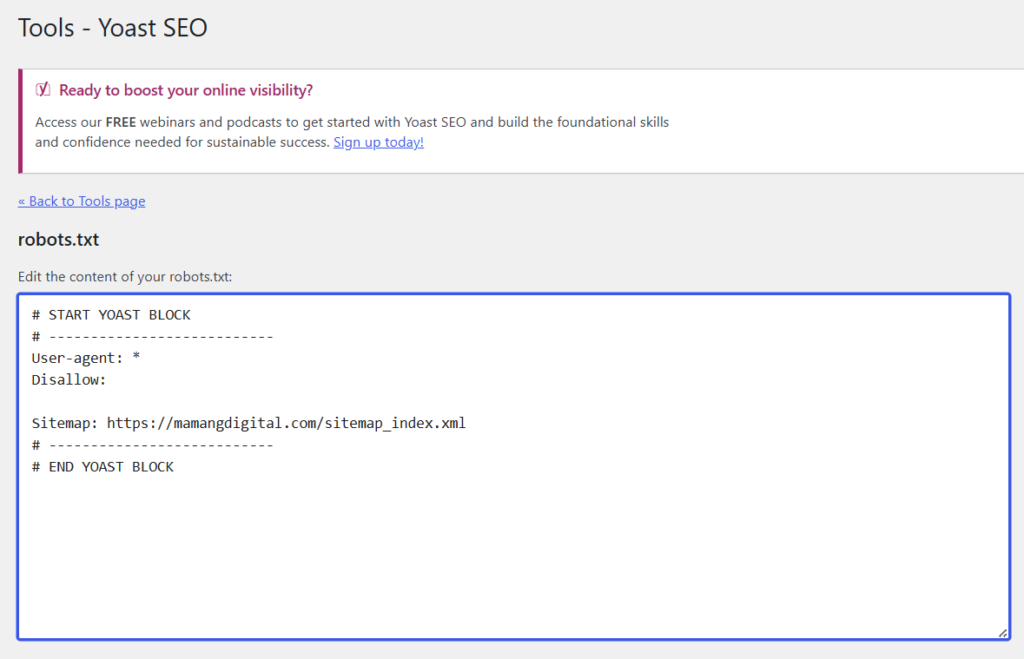
If you use Rank Math, go to Rank Math, then General Settings, then Edit robots.txt. You may need to switch the plugin to Advanced Mode for the option to appear. Edit there and save.
Whatever you do, follow one rule above all: never add Disallow: / unless you genuinely want your whole site gone from search. And if you are adding a sitemap line, this pairs naturally with actually submitting that sitemap to Google, which we cover in our guide on how to create and submit an XML sitemap.
Common Mistakes That Quietly Hurt Your Site
Beyond the big Disallow: / disaster, a few smaller mistakes catch people out. Knowing them helps you avoid creating a problem while trying to fix one.
Blocking CSS and JavaScript. Some people block these to “save crawl budget,” but it backfires. Google needs those files to see your page the way a visitor does. Block them, and Google may misread your page and rank it worse. Leave them crawlable.
Using robots.txt to hide private data. As we covered, blocked pages can still appear if linked elsewhere, and the robots.txt file itself is public for anyone to read. Never rely on it to protect sensitive content. Use real protection like a password or a noindex tag instead.
Running two SEO plugins at once. If two plugins both try to manage robots.txt, they can conflict and produce a broken or empty file. Keep only one SEO plugin active.
Editing without checking afterward. After any change, open yourdomain.com/robots.txt in your browser to confirm it looks right, and ideally test it in Google Search Console. A two minute check prevents a silent disaster. For the full technical reference, Google’s own robots.txt documentation is the authoritative source.
The Simple Takeaway
Robots.txt sounds technical, but your relationship with it as a beginner is straightforward. Visit yourdomain.com/robots.txt, make sure there is no lone Disallow: / blocking everything, confirm your normal pages are not disallowed, and then leave it alone.
It is a file that quietly does its job in the background. You do not need to master it, optimize it, or check it daily. You just need to understand it well enough to know it is not working against you. Once you have confirmed that, you can close the tab and get back to the work that actually grows your site. If you want to confirm Google is reading your pages correctly, the next step is learning to read your Google Search Console reports.
Frequently Asked Questions
Where is my robots.txt file?
It is always at the root of your domain, reachable by typing yourdomain.com/robots.txt into your browser. On WordPress, even if you never created one, a virtual robots.txt is generated automatically, so you will usually see content there.
Does robots.txt stop my page from showing in Google?
Not reliably. Robots.txt controls crawling, not indexing. A blocked page can still appear in search results if other sites link to it. To actually keep a page out of Google, use a noindex tag or password protection, not robots.txt.
My robots.txt is empty or has just a couple of lines. Is that bad?
No, that is usually fine. A short file, or one with an empty Disallow line, simply means nothing is being blocked, which is healthy for most sites. A nearly empty robots.txt is not a problem. A robots.txt with a lone Disallow: / is the one to worry about.
Do I need to create a robots.txt file if I do not have one?
Usually not. If you are on WordPress or Blogger, a working one is generated for you. You only need to create or edit a file if you have a specific reason, like adding a sitemap line or blocking a particular folder, and even then your SEO plugin handles it for you.
Can I just copy someone else’s robots.txt?
It is risky. Their rules are written for their site’s structure, not yours, and copying blindly can block the wrong things. If you need rules, start from your platform’s default and change only what you understand. When in doubt, allowing access is safer than disallowing it.